1
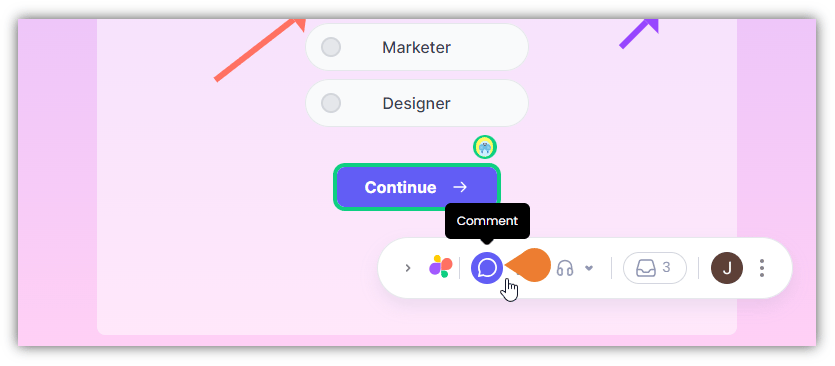
Find the Superflow Toolbar and click the Comment icon
2
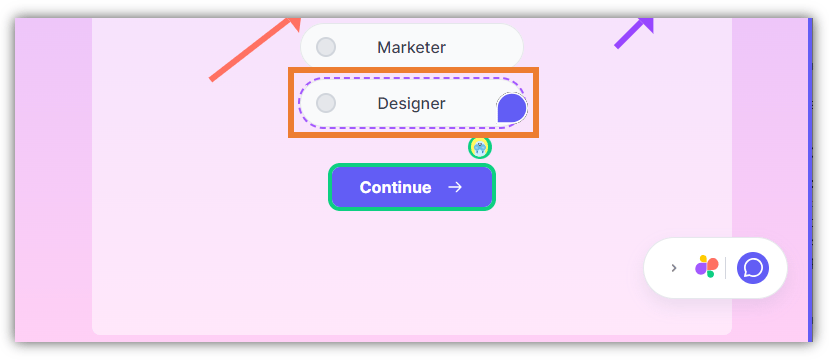
After clicking the icon, click the Element you want to comment on
when you hover your cursor on an element, it will appear as a Comment icon which signifies that you selected the comment feature.
3
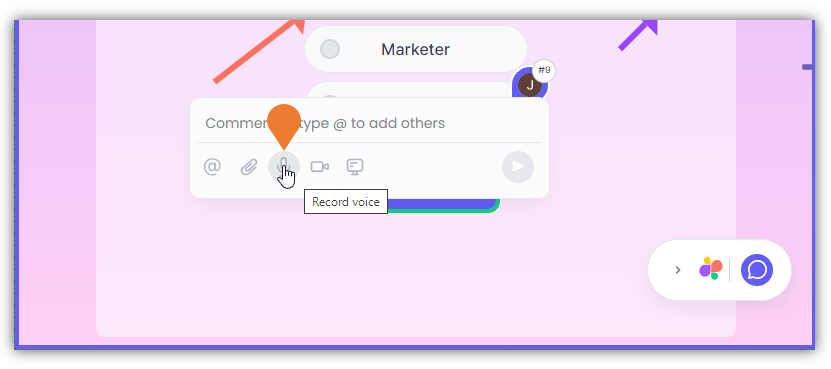
The Comment Box will appear, click the Microphone icon to select
4
A Recording window will appear
Click the Start Recording button to begin recording the voice note.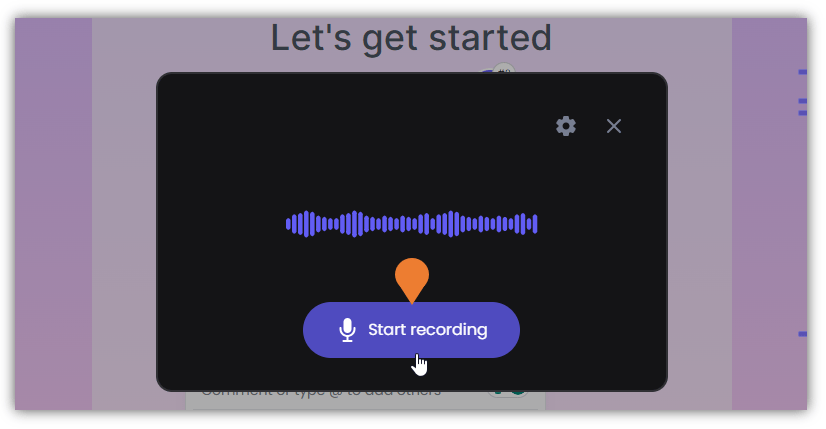
5
To complete your recording, click the Green Check Mark
This will stop the current recording.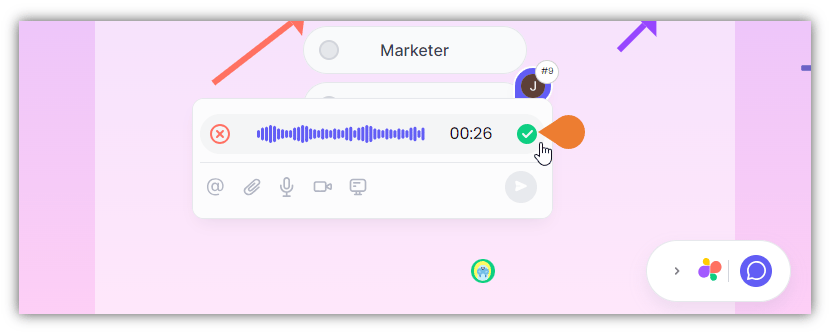
6
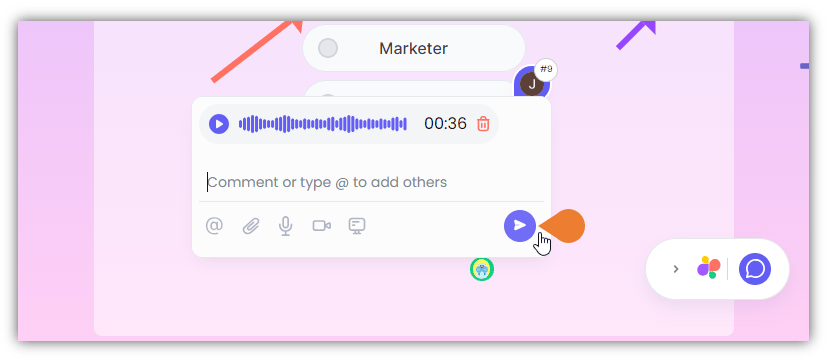
Click the Post button to save the voice note