

Agents are currently in Beta. Running a group charges credits for every agent in it, and the total is shown before you confirm the run.
Creating the Group
1
On the Superflow Dashboard, click Agents in the left sidebar to open the All Agents page
Click the New Group button on the upper right side.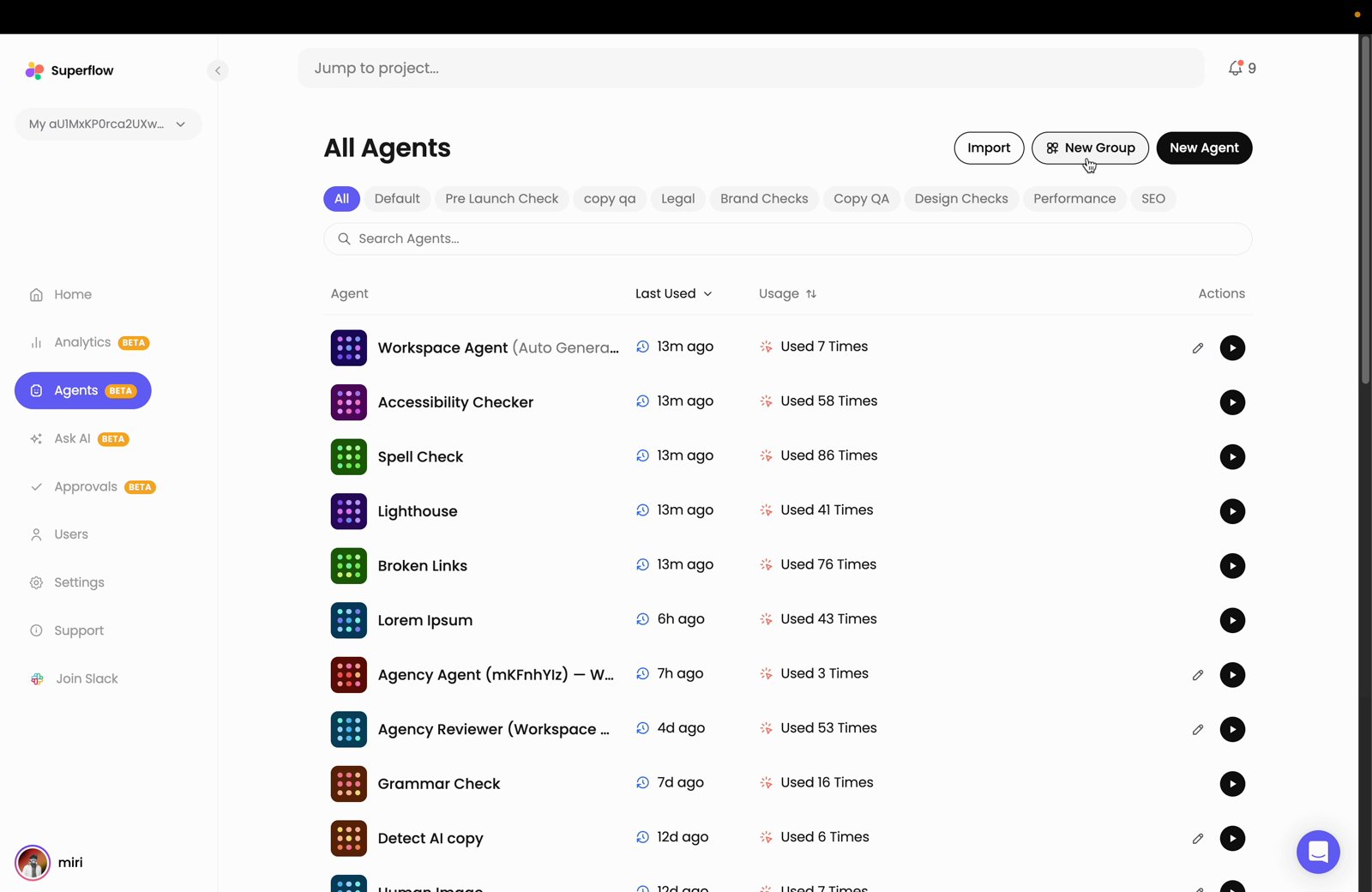
2
The Create Agent Group dialog will appear
Enter a Group Name, then tick the agents you want in the group. Use the Search field to find agents by name, or click Select all to add every agent. A counter below the list shows how many you have selected. Click Create Group.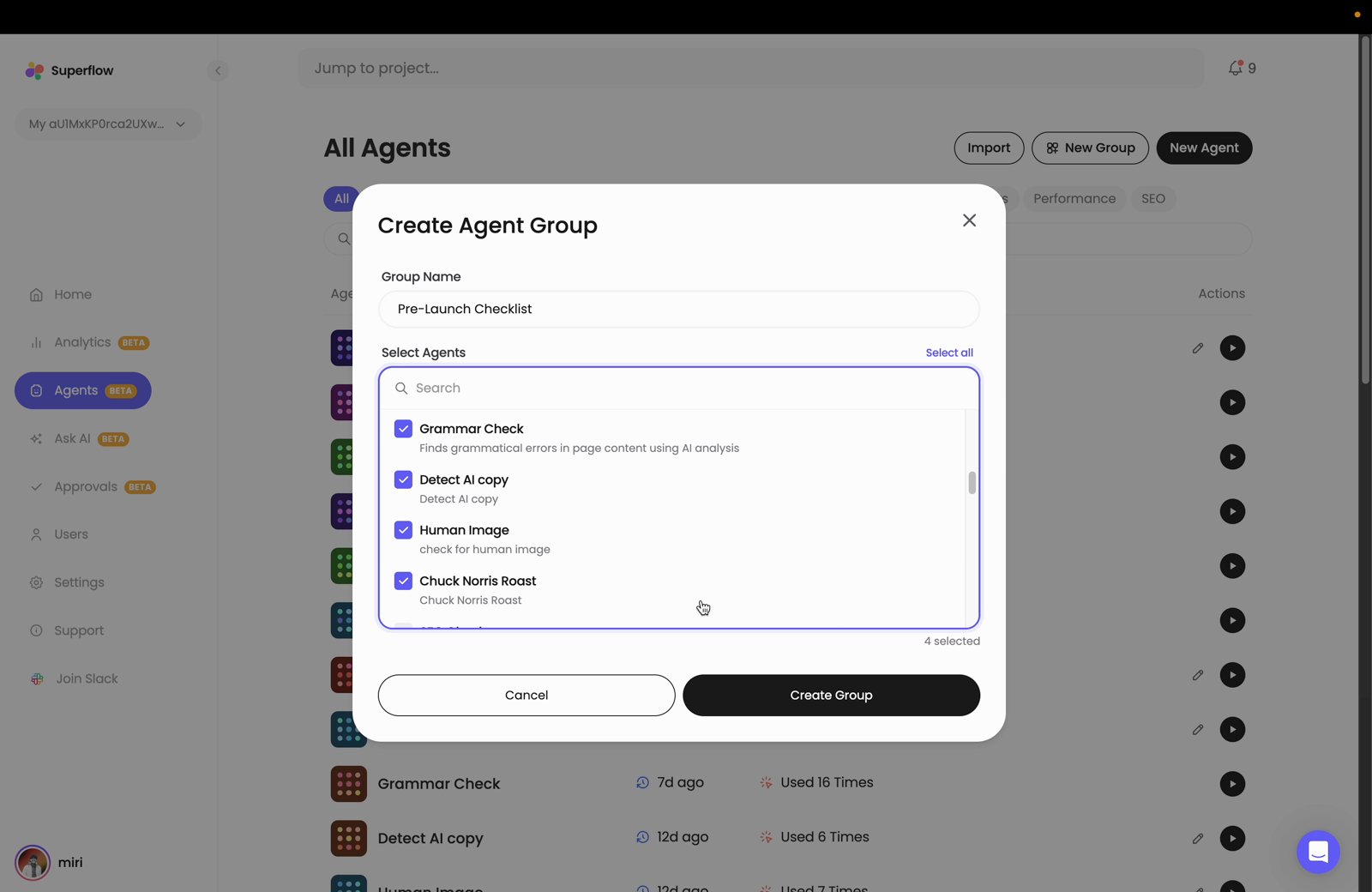
3
The group is created and opens straight away, showing only the agents it contains
It is also added to the filter row beneath the page title, so you can jump back to it at any time.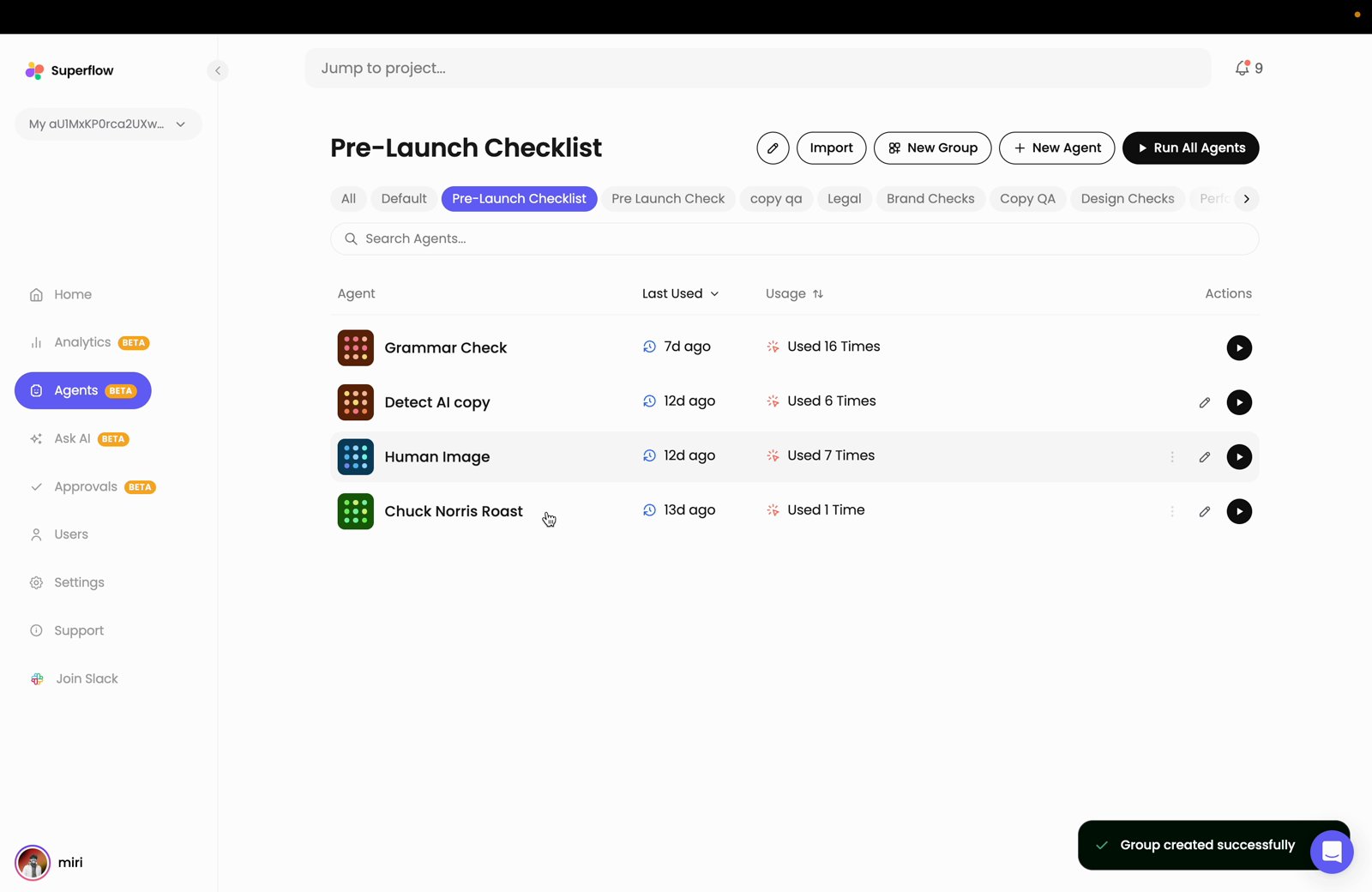
Running the Group
1
With the group open, click Run All Agents
The run dialog will appear, titled with the number of agents in the group. Select the project to run against, then set the Path, choose Desktop or Mobile, and leave Run only for main URL checked to check just the main URL.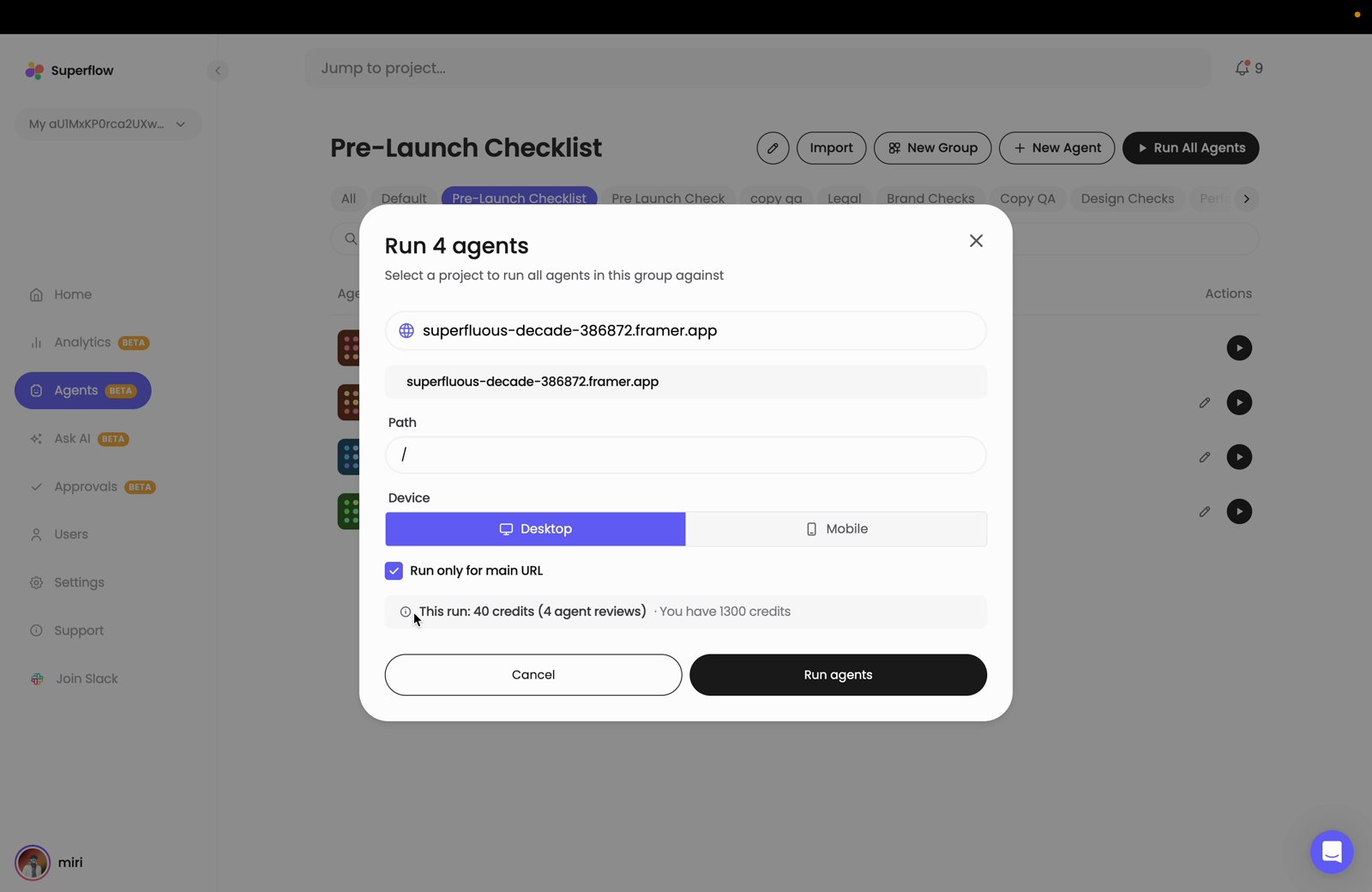
1
Every agent in the group starts at once, and each row shows a running status while it works
Click an agent’s name to open its results panel on the right and follow that agent’s progress and past runs.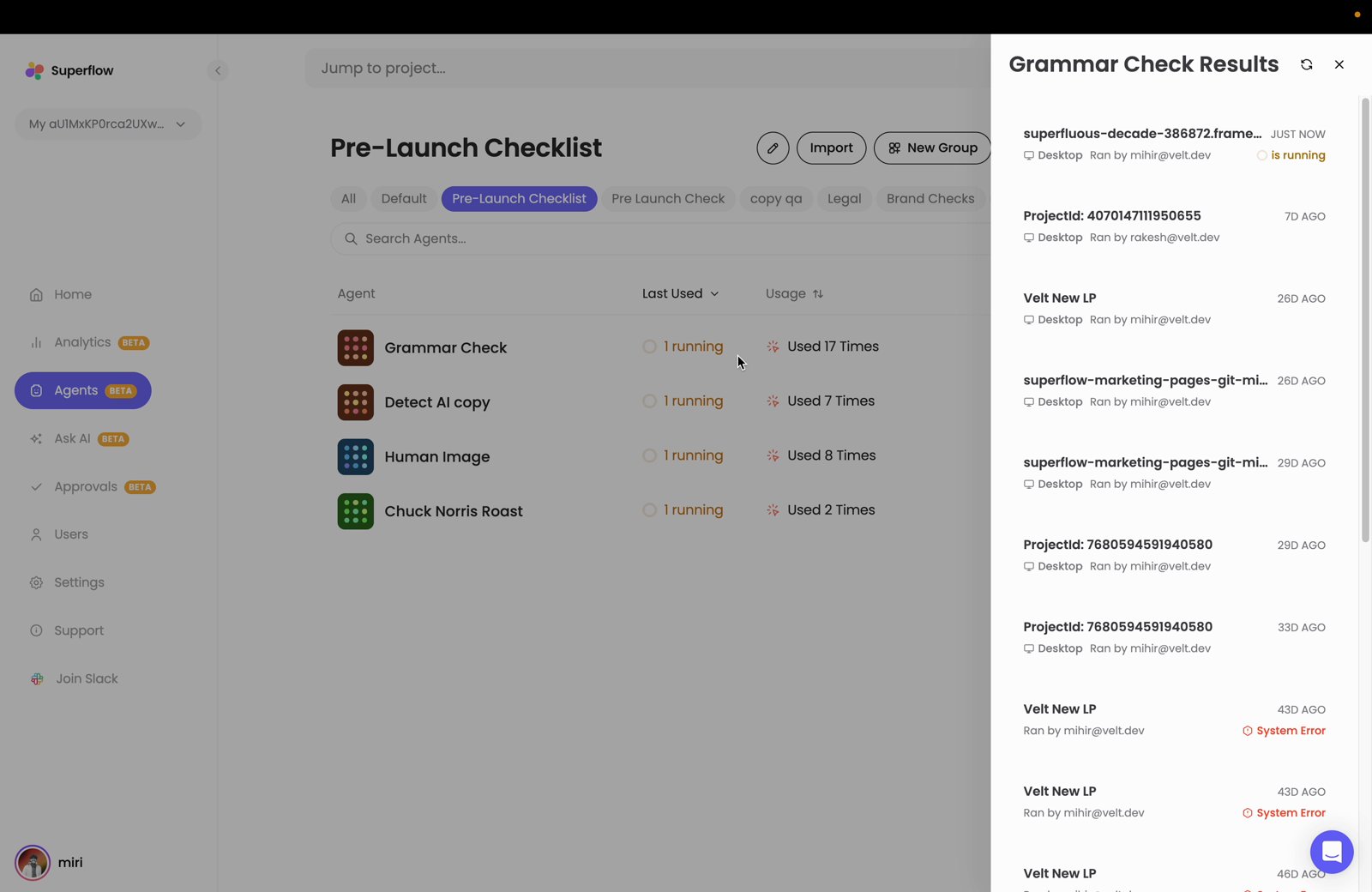
Next Steps
How to Create a New Agent
Build a new agent so you can add it to a group.
How to Run an Agent from the Agents Tab
Run a single agent instead of a whole group.