> ## Documentation Index
> Fetch the complete documentation index at: https://superflow-claude-superflow-portal-docs-78gpp8.mintlify.site/llms.txt
> Use this file to discover all available pages before exploring further.

# Quickstart

> Install Superflow on your site and leave your first comment.

Superflow installs as a single script on the site you already have. Once it is on the page, you add `?review=true` to any URL to bring up the toolbar and start commenting.
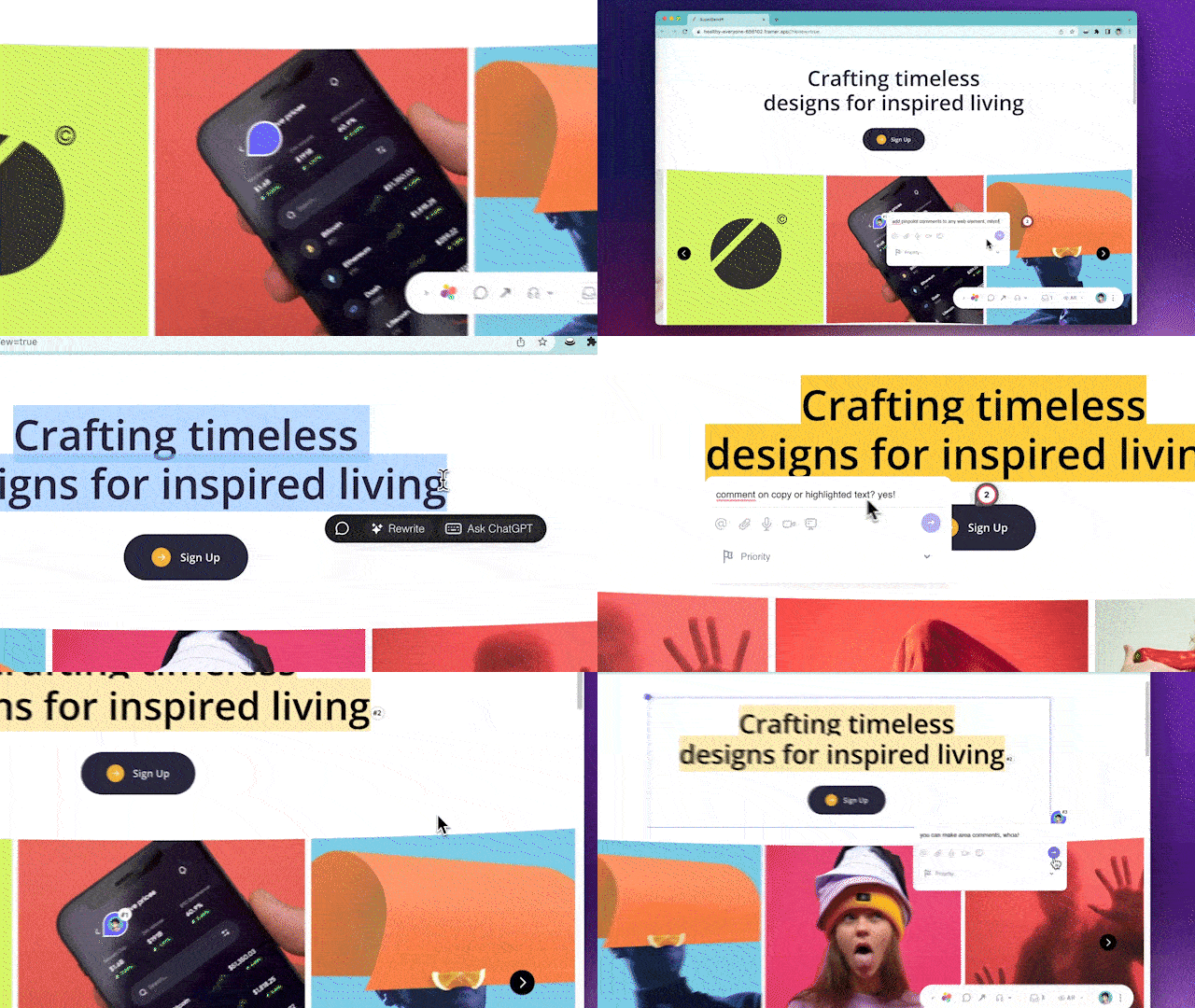
<Frame caption="What you get once Superflow is installed">
  <img src="https://mintcdn.com/superflow-claude-superflow-portal-docs-78gpp8/_zKrRwh5L1PapanY/images/demo.gif?s=f8a9dd8577b5ee8929ed7dd7e34658fb" alt="The Superflow toolbar on a live site, with a comment being left on the page" width="640" height="360" data-path="images/demo.gif" />
</Frame>

<Steps>
  <Step title="Create a project" icon="folder-plus">
    Enter the URL of the site you want to review. Superflow generates a unique script for that project.
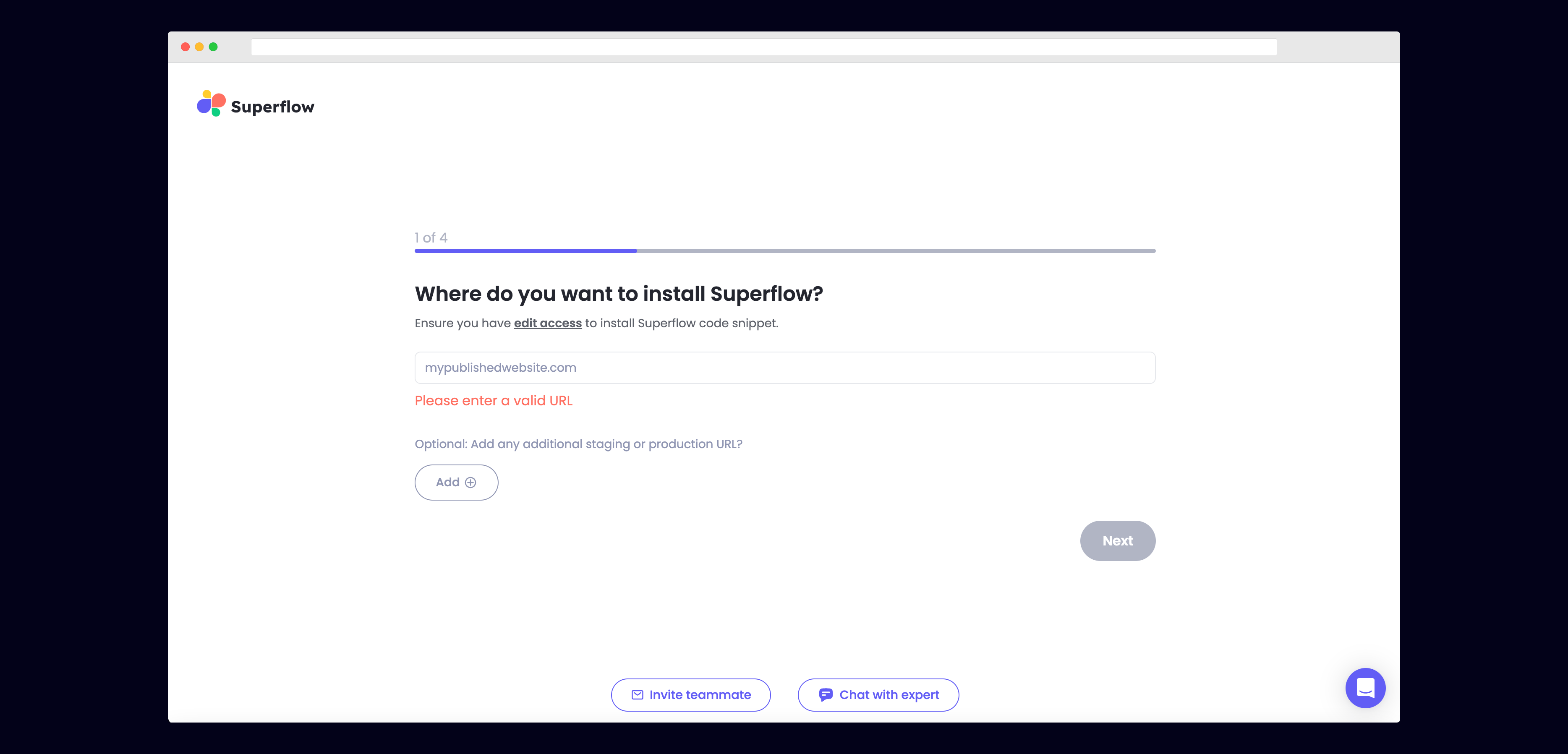
    <Frame>
      <img src="https://mintcdn.com/superflow-claude-superflow-portal-docs-78gpp8/_zKrRwh5L1PapanY/images/enter-url-final.png?fit=max&auto=format&n=_zKrRwh5L1PapanY&q=85&s=c8a09de8b3c9572c73e5651837dccab7" alt="Entering a site URL when creating a Superflow project" width="3736" height="1797" data-path="images/enter-url-final.png" />
    </Frame>

    <Tip>
      Turn on **Run Agents** here and Superflow starts reviewing the site for spelling, broken links, accessibility and more while you finish the install. See [agent pre-checks](/agents/how-to-run-agent-pre-checks-on-a-new-project).
    </Tip>
  </Step>

  <Step title="Add the script to your site" icon="code">
    Pick your platform below. Every install guide opens with a video walkthrough, then repeats it as steps with a screenshot for each click.
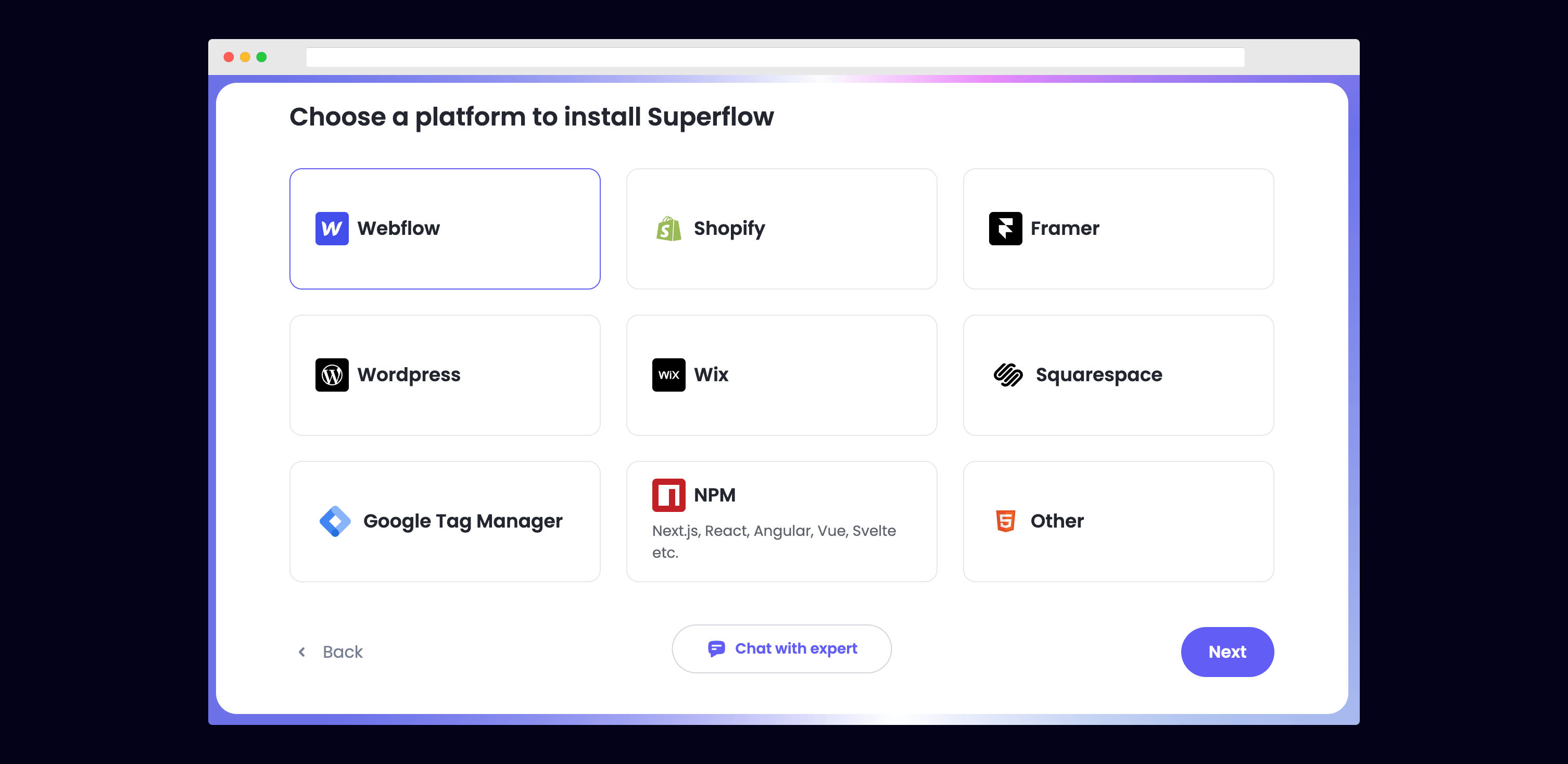
    <Frame>
      <img src="https://mintcdn.com/superflow-claude-superflow-portal-docs-78gpp8/g2KY_MNTB5LdaNY9/images/select-platform-final.png?fit=max&auto=format&n=g2KY_MNTB5LdaNY9&q=85&s=5c21f8d5b1cbf1953a2d5d4b64c0bfc3" alt="Choosing a platform from the list during Superflow onboarding" width="3012" height="1467" data-path="images/select-platform-final.png" />
    </Frame>
  </Step>

  <Step title="Verify the installation" icon="circle-check">
    Click **Verify** in the onboarding flow. Superflow opens your published site and confirms the script is live.

    <Frame>
      <img src="https://mintcdn.com/superflow-claude-superflow-portal-docs-78gpp8/g2KY_MNTB5LdaNY9/images/verified-final.png?fit=max&auto=format&n=g2KY_MNTB5LdaNY9&q=85&s=67af7ec1dfe72bc2974e612b4734cb2d" alt="The Superflow installation verified confirmation message" width="1366" height="1206" data-path="images/verified-final.png" />
    </Frame>

    <Warning>
      Not verifying? The usual causes are unsaved custom code, an unpublished site, a cached page, a missing `?review=true`, a staging URL when you are checking production, or the script installed twice.
    </Warning>
  </Step>

  <Step title="Leave your first comment" icon="comment-dots">
    Open your site with `?review=true` at the end of the URL, for example `mywebsite.com/?review=true`. The toolbar appears in the bottom right.
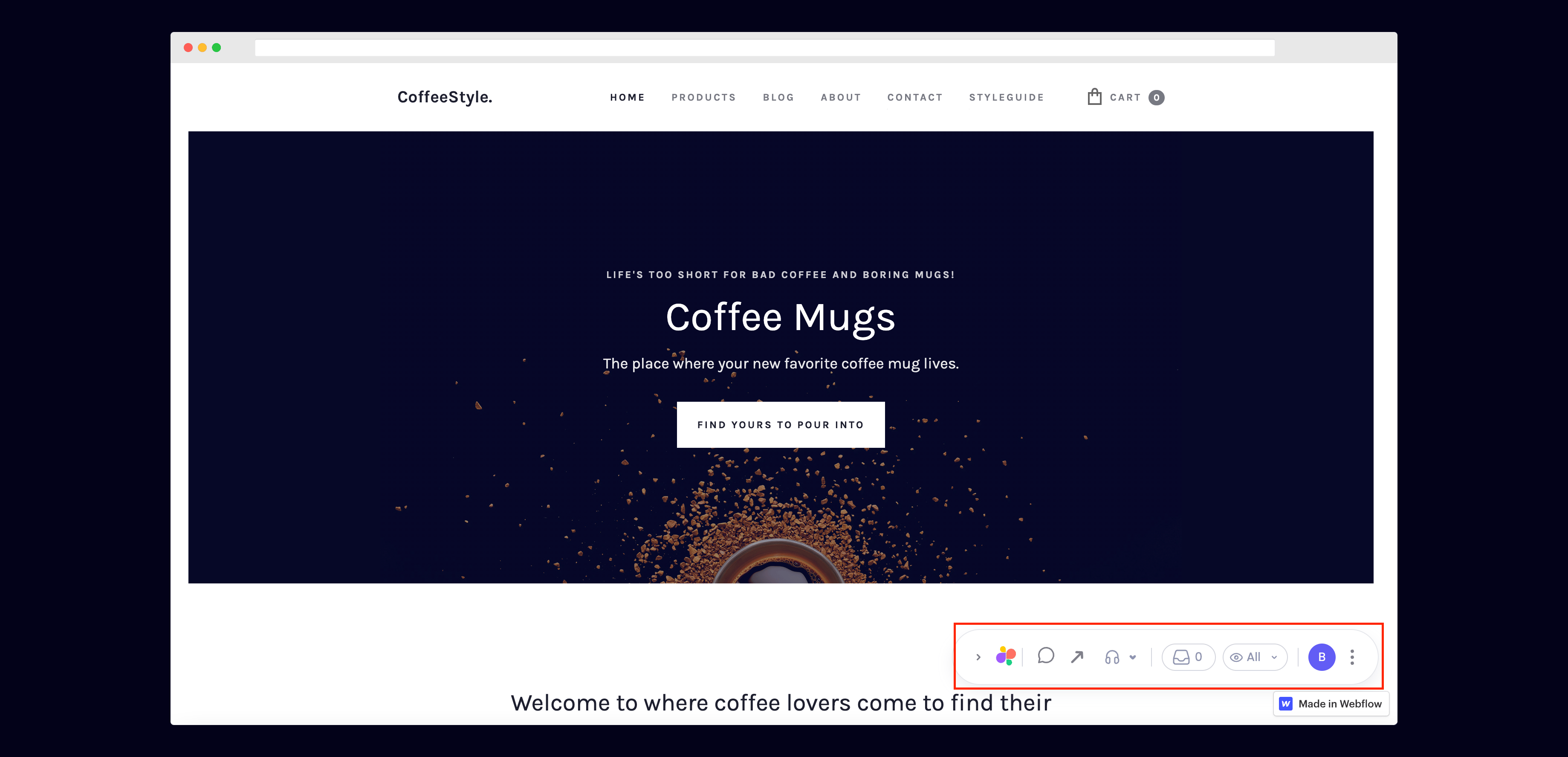
    <Frame>
      <img src="https://mintcdn.com/superflow-claude-superflow-portal-docs-78gpp8/g2KY_MNTB5LdaNY9/images/toolbar-final.png?fit=max&auto=format&n=g2KY_MNTB5LdaNY9&q=85&s=b492072e934939d1335584a8efdeba6a" alt="The Superflow toolbar in the bottom right of a live website" width="3678" height="1775" data-path="images/toolbar-final.png" />
    </Frame>

    You can comment by highlighting text, hovering an element, or drawing a box anywhere on the page, and you can record a voice note or your screen instead of typing.
  </Step>
</Steps>

## Pick your platform

<CardGroup cols={3}>
  <Card title="Webflow" icon="webflow" href="/no-code-platforms/webflow/setup" horizontal />

  <Card title="Webflow app" icon="webflow" href="/no-code-platforms/webflow-integration/setup" horizontal />

  <Card title="WordPress plugin" icon="wordpress" href="/no-code-platforms/wordpress-plugin/setup" horizontal />

  <Card title="WordPress self-hosted" icon="wordpress" href="/no-code-platforms/wordpress/setup" horizontal />

  <Card title="Elementor" icon="elementor" href="/no-code-platforms/elementor/setup" horizontal />

  <Card title="Shopify" icon="shopify" href="/no-code-platforms/shopify/setup" horizontal />

  <Card title="Squarespace" icon="squarespace" href="/no-code-platforms/squarespace/setup" horizontal />

  <Card title="Wix" icon="wix" href="/no-code-platforms/wix/setup" horizontal />

  <Card title="Bubble" icon="puzzle-piece" href="/no-code-platforms/bubble/setup" horizontal />

  <Card title="HubSpot" icon="hubspot" href="/no-code-platforms/hubspot/setup" horizontal />

  <Card title="Drupal" icon="drupal" href="/no-code-platforms/drupal/setup" horizontal />

  <Card title="Framer" icon="browser" href="/no-code-platforms/framer/setup" horizontal />

  <Card title="Typedream" icon="browser" href="/no-code-platforms/typedream/setup" horizontal />

  <Card title="Google Tag Manager" icon="google" href="/no-code-platforms/google-tag-manager/setup" horizontal />

  <Card title="React" icon="react" href="/web-frameworks/react/setup" horizontal />

  <Card title="Next.js" icon="n" href="/web-frameworks/next/setup" horizontal />

  <Card title="Vue" icon="vuejs" href="/web-frameworks/vue/setup" horizontal />

  <Card title="Angular" icon="angular" href="/web-frameworks/angular/setup" horizontal />

  <Card title="Svelte" icon="code" href="/web-frameworks/svelte/setup" horizontal />
</CardGroup>

## Next

<CardGroup cols={2}>
  <Card title="Put agents to work" icon="robot" href="/agents/overview">
    Describe a check in plain English and let Superflow run it against your site.
  </Card>

  <Card title="Watch every walkthrough" icon="circle-play" href="/watch">
    All installation and agent videos on one page.
  </Card>
</CardGroup>
