> ## Documentation Index
> Fetch the complete documentation index at: https://superflow-claude-superflow-portal-docs-78gpp8.mintlify.site/llms.txt
> Use this file to discover all available pages before exploring further.

# Squarespace

> Install Superflow on Squarespace, with a video walkthrough and step-by-step screenshots.

<Frame caption="Watch the full Squarespace walkthrough">
  <iframe className="w-full aspect-video rounded-xl" src="https://www.youtube.com/embed/va4xHv9CSpY?si=NShiTAgJhoZQnquG" title="Install Superflow on Squarespace" frameBorder="0" allow="accelerometer; autoplay; clipboard-write; encrypted-media; gyroscope; picture-in-picture; web-share" allowFullScreen />
</Frame>

<Tip>
  Prefer to read? Every step in the video is written out below, with a screenshot for each one.
</Tip>

<Steps>
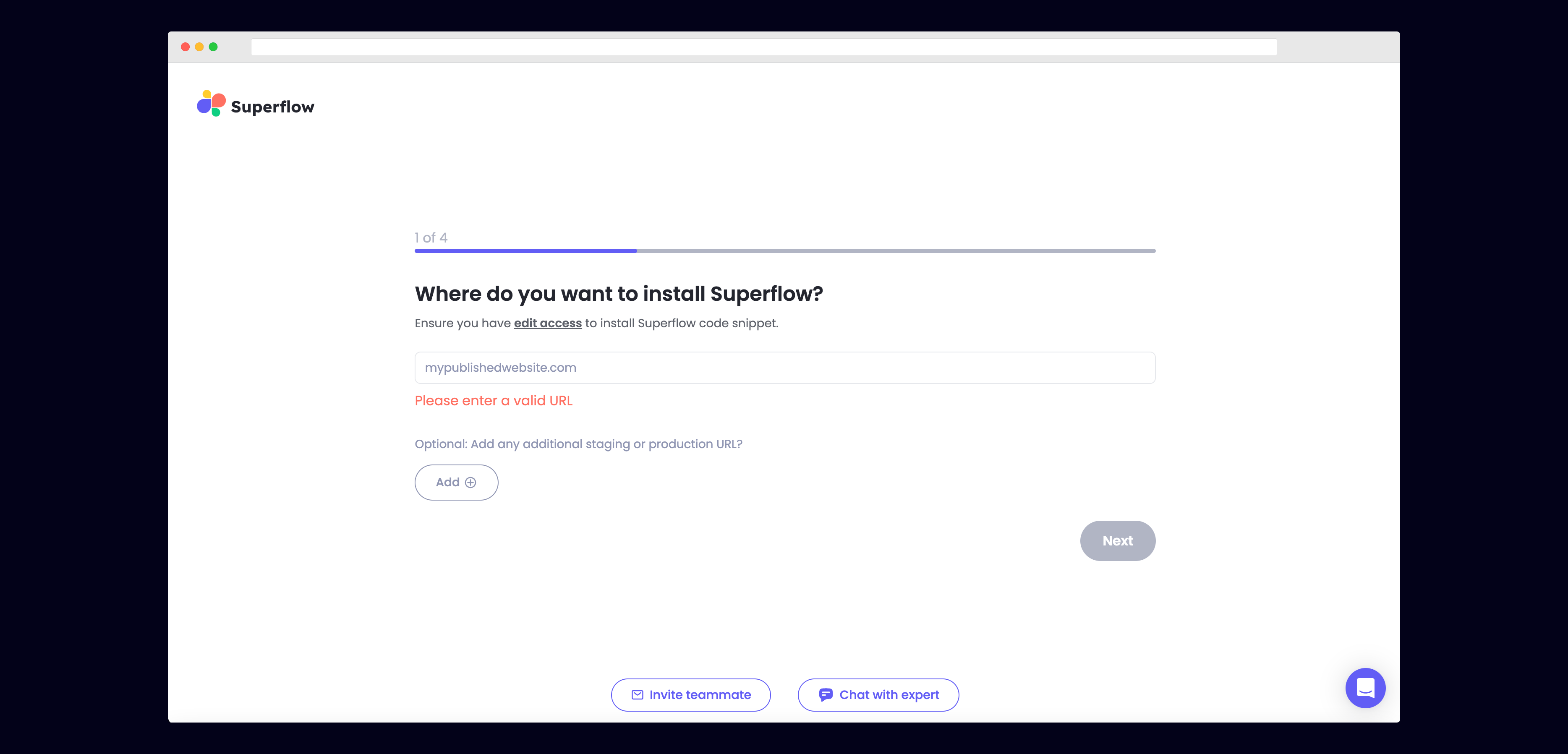
  <Step title="Enter Your Site URL">
    Enter the site URL you want Superflow to be installed in.

    <Frame>
      <img src="https://mintcdn.com/superflow-claude-superflow-portal-docs-78gpp8/_zKrRwh5L1PapanY/images/enter-url-final.png?fit=max&auto=format&n=_zKrRwh5L1PapanY&q=85&s=c8a09de8b3c9572c73e5651837dccab7" alt="Squarespace: Enter Your Site URL" width="3736" height="1797" data-path="images/enter-url-final.png" />
    </Frame>
  </Step>

  <Step title="Select Squarespace from the list of Platforms">
    Choose Squarespace from the list of options to install Superflow with Squarespace.

    <Frame>
      <img src="https://mintcdn.com/superflow-claude-superflow-portal-docs-78gpp8/g2KY_MNTB5LdaNY9/images/select-squarespace-final.png?fit=max&auto=format&n=g2KY_MNTB5LdaNY9&q=85&s=f5375efc1da51915a1920df38b2c4ac9" alt="Squarespace: Select Squarespace from the list of Platforms" width="3000" height="1451" data-path="images/select-squarespace-final.png" />
    </Frame>
  </Step>

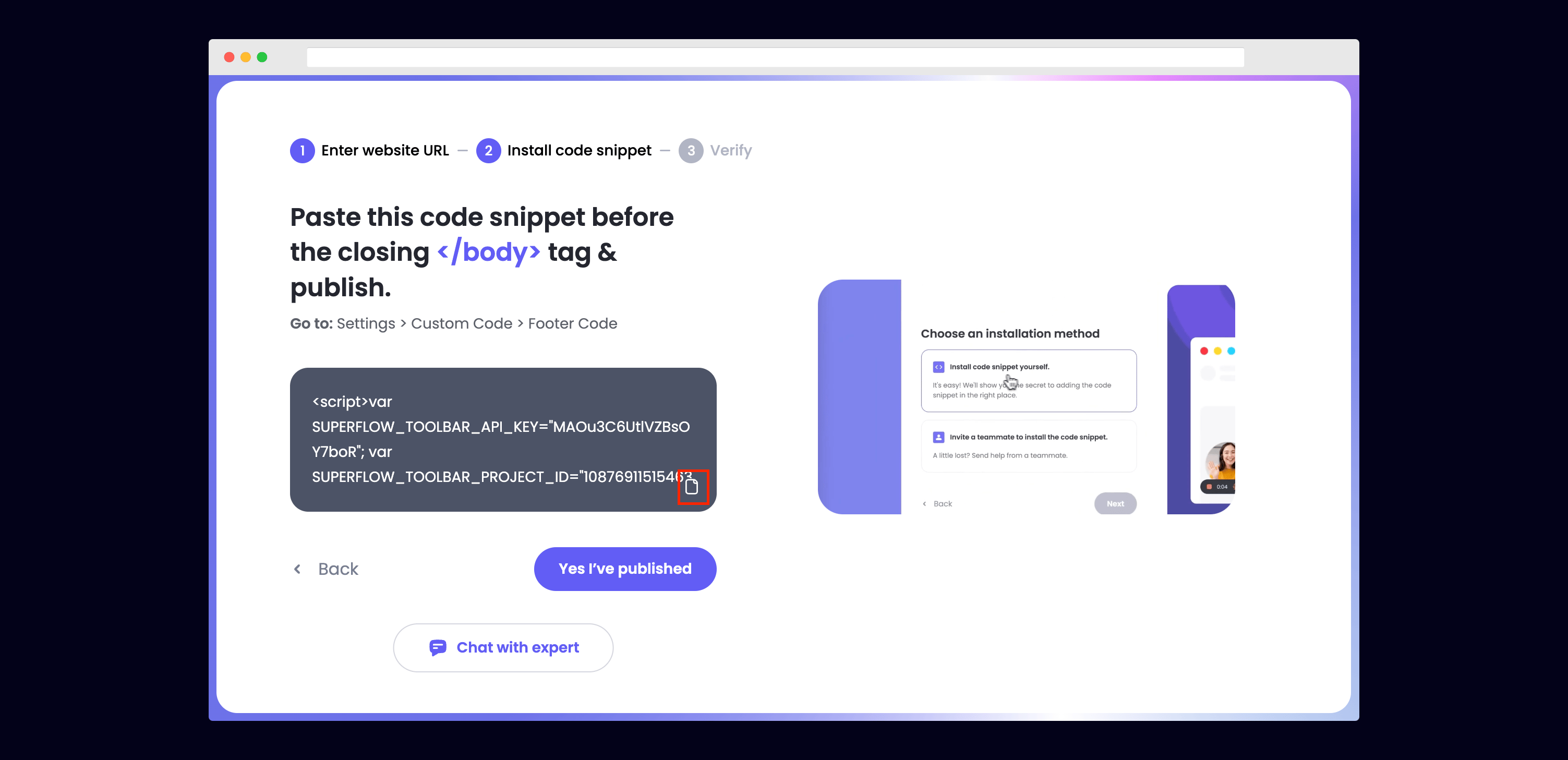
  <Step title="Copy your unique Superflow code">
    You can copy your unique Superflow code from the onboarding flow or from your project settings in your dashboard.

    <Frame>
      <img src="https://mintcdn.com/superflow-claude-superflow-portal-docs-78gpp8/_zKrRwh5L1PapanY/images/copy-code-final.png?fit=max&auto=format&n=_zKrRwh5L1PapanY&q=85&s=3690324884a9fcff709593c2738a3d0b" alt="Squarespace: Copy your unique Superflow code" width="3006" height="1457" data-path="images/copy-code-final.png" />
    </Frame>
  </Step>

  <Step title="Go to Settings on your Squarespace Site">
    You can get to Settings by clicking on the the bottom left of the side menu.

    <Frame>
      <img src="https://mintcdn.com/superflow-claude-superflow-portal-docs-78gpp8/g2KY_MNTB5LdaNY9/images/settings-squarespace-1-final.png?fit=max&auto=format&n=g2KY_MNTB5LdaNY9&q=85&s=ca110ef03278586fcd542055efd84e5a" alt="Squarespace: Go to Settings on your Squarespace Site" width="3658" height="1661" data-path="images/settings-squarespace-1-final.png" />
    </Frame>
  </Step>

  <Step title="Go to Developer Tools -> Code Injection within Settings">
    Next, click on Developer Tools on the bottom left, and after the dropdown expands, click on Code Injection.

    <Frame>
      <img src="https://mintcdn.com/superflow-claude-superflow-portal-docs-78gpp8/g2KY_MNTB5LdaNY9/images/settings-squarespace-2-final.png?fit=max&auto=format&n=g2KY_MNTB5LdaNY9&q=85&s=e54c7be506f60dd2e385ee793c550bf3" alt="Squarespace: Go to Developer Tools -> Code Injection within Settings" data-og-width="3678" width="3678" data-og-height="1649" height="1649" data-path="images/settings-squarespace-2-final.png" data-optimize="true" data-opv="3" srcset="https://mintcdn.com/superflow-claude-superflow-portal-docs-78gpp8/g2KY_MNTB5LdaNY9/images/settings-squarespace-2-final.png?w=280&fit=max&auto=format&n=g2KY_MNTB5LdaNY9&q=85&s=8d1b622bf95e52b498b35227acddea66 280w, https://mintcdn.com/superflow-claude-superflow-portal-docs-78gpp8/g2KY_MNTB5LdaNY9/images/settings-squarespace-2-final.png?w=560&fit=max&auto=format&n=g2KY_MNTB5LdaNY9&q=85&s=6392a887fc920fad82ac7c24c5a9a61e 560w, https://mintcdn.com/superflow-claude-superflow-portal-docs-78gpp8/g2KY_MNTB5LdaNY9/images/settings-squarespace-2-final.png?w=840&fit=max&auto=format&n=g2KY_MNTB5LdaNY9&q=85&s=5432aa23eea5dea347c3f457fffbb9ba 840w, https://mintcdn.com/superflow-claude-superflow-portal-docs-78gpp8/g2KY_MNTB5LdaNY9/images/settings-squarespace-2-final.png?w=1100&fit=max&auto=format&n=g2KY_MNTB5LdaNY9&q=85&s=ecb3f67fb4ed0a779e69332686b3a98a 1100w, https://mintcdn.com/superflow-claude-superflow-portal-docs-78gpp8/g2KY_MNTB5LdaNY9/images/settings-squarespace-2-final.png?w=1650&fit=max&auto=format&n=g2KY_MNTB5LdaNY9&q=85&s=edaea161a7c88fb84a1c1c9685ccceb0 1650w, https://mintcdn.com/superflow-claude-superflow-portal-docs-78gpp8/g2KY_MNTB5LdaNY9/images/settings-squarespace-2-final.png?w=2500&fit=max&auto=format&n=g2KY_MNTB5LdaNY9&q=85&s=34b840e68358e240e244f65993fd3dfa 2500w" />
    </Frame>
  </Step>

  <Step title="Add your unique Superflow code in the Footer section">
    Scroll down and add your unique Superflow code in the Footer Code section. Be sure to save.

    <Frame>
      <img src="https://mintcdn.com/superflow-claude-superflow-portal-docs-78gpp8/_zKrRwh5L1PapanY/images/footer-squarespace-final.png?fit=max&auto=format&n=_zKrRwh5L1PapanY&q=85&s=c151e14138a63472c5d87ec2c1e2ad9a" alt="Squarespace: Add your unique Superflow code in the Footer section" width="1698" height="1014" data-path="images/footer-squarespace-final.png" />
    </Frame>
  </Step>

  <Step title="Publish your Squarespace site">
    To Publish your site and make it live to the public, first go to Settings by clicking on the bottom left of the side menu.

    <Frame>
      <img src="https://mintcdn.com/superflow-claude-superflow-portal-docs-78gpp8/g2KY_MNTB5LdaNY9/images/settings-squarespace-1-final.png?fit=max&auto=format&n=g2KY_MNTB5LdaNY9&q=85&s=ca110ef03278586fcd542055efd84e5a" alt="Squarespace: Publish your Squarespace site" width="3658" height="1661" data-path="images/settings-squarespace-1-final.png" />
    </Frame>

    Next, click on Site Availability and change it to Public and then press Publish.

    <Frame>
      <img src="https://mintcdn.com/superflow-claude-superflow-portal-docs-78gpp8/g2KY_MNTB5LdaNY9/images/publish-squarespace-final.png?fit=max&auto=format&n=g2KY_MNTB5LdaNY9&q=85&s=6d71e218592171a227454c0410e063dc" alt="Squarespace: Publish your Squarespace site" width="3632" height="1693" data-path="images/publish-squarespace-final.png" />
    </Frame>
  </Step>

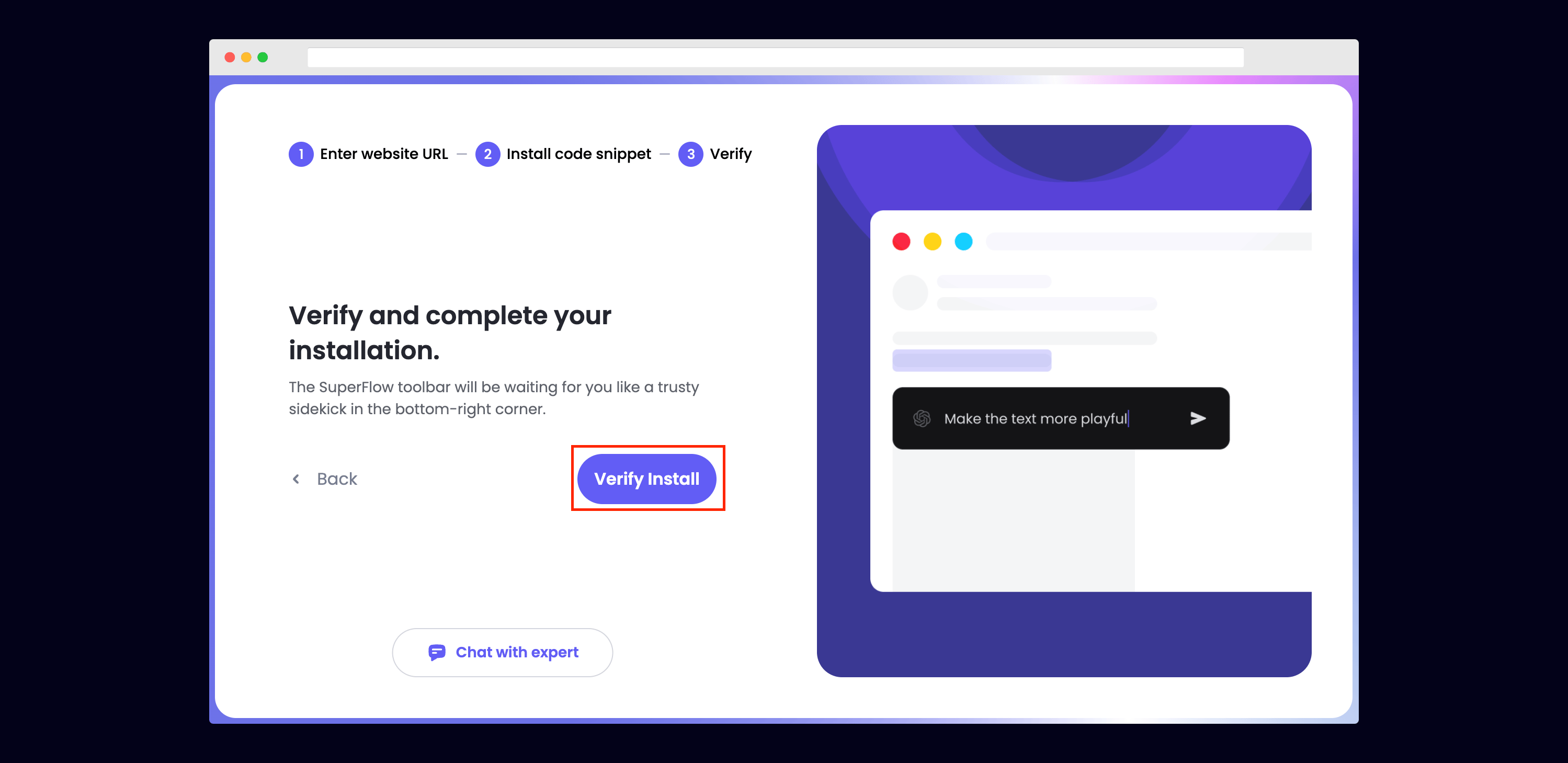
  <Step title="Verify your Installation">
    Verify your Superflow installation by clicking the Verify button on the onboarding flow.

    <Frame>
      <img src="https://mintcdn.com/superflow-claude-superflow-portal-docs-78gpp8/g2KY_MNTB5LdaNY9/images/verify-final.png?fit=max&auto=format&n=g2KY_MNTB5LdaNY9&q=85&s=bb7d8205964ce5188940907cb8260915" alt="Squarespace: Verify your Installation" width="2998" height="1459" data-path="images/verify-final.png" />
    </Frame>

    If successful, you should be redirected to your published Squarespace site and see the following success message:

    <Frame>
      <img src="https://mintcdn.com/superflow-claude-superflow-portal-docs-78gpp8/g2KY_MNTB5LdaNY9/images/verified-final.png?fit=max&auto=format&n=g2KY_MNTB5LdaNY9&q=85&s=67af7ec1dfe72bc2974e612b4734cb2d" alt="Squarespace: Verify your Installation" width="1366" height="1206" data-path="images/verified-final.png" />
    </Frame>
  </Step>

  <Step title="Troubleshooting">
    Having trouble getting your verifying your installation? Here are the common mistakes users encounter when installing Superflow:

    * Did you forget to save the Custom Code?
    * Did you forget to publish your site?
    * Is the browser still loading a cached version?
    * Did you add `?review=true` at the end of your url?
    * Did you publish your changes on a staging URL while you are trying to access a Prod URL?
    * Did you accidentally install multiple Superflow scripts in the Custom Code?
  </Step>

  <Step title="Navigate to your Squarespace site">
    Now that you have verified that Superflow has been installed on your Squarespace site, navigate to your published site and add `?review=true` at the end of the URL to enable Superflow.

    `Example: mywebsite.squarespace.com/?review=true`
  </Step>

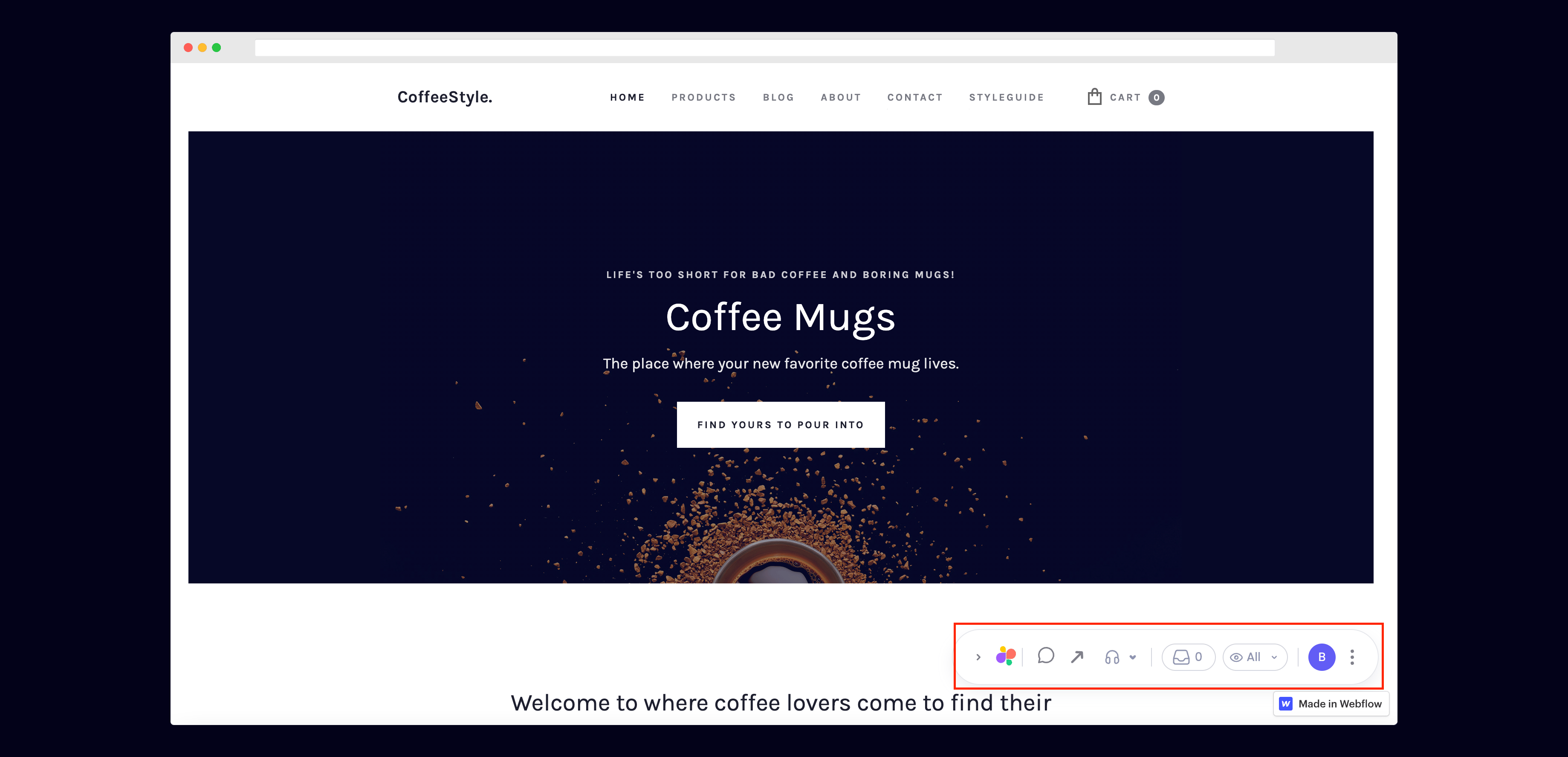
  <Step title="Test out Superflow">
    You should now see a Superflow toolbar on the bottom right of you screen.

    <Frame>
      <img src="https://mintcdn.com/superflow-claude-superflow-portal-docs-78gpp8/g2KY_MNTB5LdaNY9/images/toolbar-final.png?fit=max&auto=format&n=g2KY_MNTB5LdaNY9&q=85&s=b492072e934939d1335584a8efdeba6a" alt="Squarespace: Test out Superflow" width="3678" height="1775" data-path="images/toolbar-final.png" />
    </Frame>
  </Step>

  <Step title="Dropping your first comment">
    Try leaving a comment on your page.

    You can leave a comment in several different ways:

    * By highlighting any text
    * By hovering over any element on the page
    * By drawing a box anywhere on the page

    You can also leave voice and screen recordings in your comments as well!
    <Frame>
      <img src="https://mintcdn.com/superflow-claude-superflow-portal-docs-78gpp8/_zKrRwh5L1PapanY/images/demo.gif?s=f8a9dd8577b5ee8929ed7dd7e34658fb" alt="Squarespace: Dropping your first comment" width="640" height="360" data-path="images/demo.gif" />
    </Frame>
  </Step>
</Steps>