> ## Documentation Index
> Fetch the complete documentation index at: https://superflow-claude-superflow-portal-docs-78gpp8.mintlify.site/llms.txt
> Use this file to discover all available pages before exploring further.

# How to Use Guest Mode

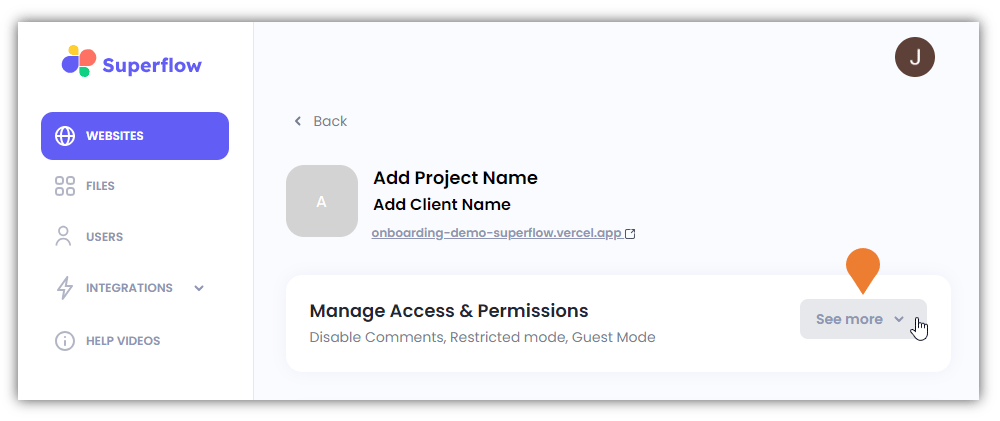
> To use the Guest Mode feature, you have to sign out from your Superflow account.

To use the Guest Mode feature, you have to sign out from your Superflow account. Once you log out, the GUEST MODE will automatically kick in. When the guest mode is enabled, you can leave comments on the project even if you are not logged in to a Superflow account.
<Frame>
  <img src="https://mintcdn.com/superflow-claude-superflow-portal-docs-78gpp8/RIqHueQcev0iKYC7/images/how-to-guides/how-to-use-guest-mode/GM1FINAL.png?fit=max&auto=format&n=RIqHueQcev0iKYC7&q=85&s=aa8b59a4c627ab7e64210300d4c53ce2" alt="To use the Guest Mode feature, you have to sign out from your Superflow account" width="782" height="422" data-path="images/how-to-guides/how-to-use-guest-mode/GM1FINAL.png" />
</Frame>

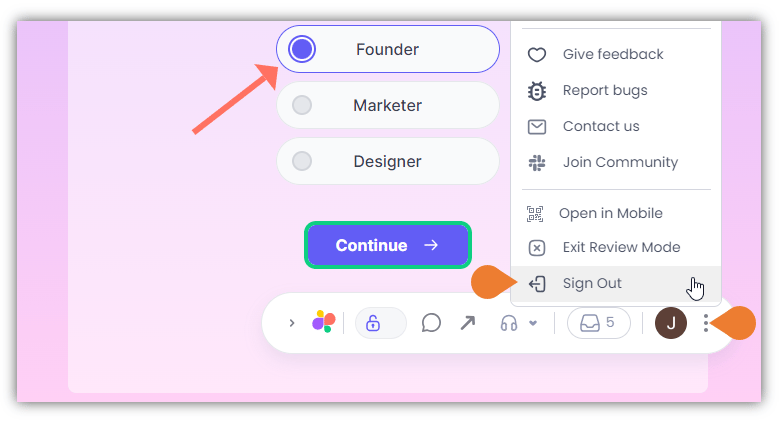
It is important to note, that to use the Guest Mode, it has to be enabled first. See Enabling Guest Mode (Admin) for more information.
<Frame>
  <img src="https://mintcdn.com/superflow-claude-superflow-portal-docs-78gpp8/RIqHueQcev0iKYC7/images/how-to-guides/how-to-use-guest-mode/GM2FINAL.png?fit=max&auto=format&n=RIqHueQcev0iKYC7&q=85&s=bddfeed884431472b47b14e7425299cc" alt="It is important to note, that to use the Guest Mode, it has to be enabled first" width="783" height="364" data-path="images/how-to-guides/how-to-use-guest-mode/GM2FINAL.png" />
</Frame>

### Enabling Guest Mode (Admin)

Enabling the guest mode is a required prerequisite to use this feature. You need to have admin credentials to access this option.
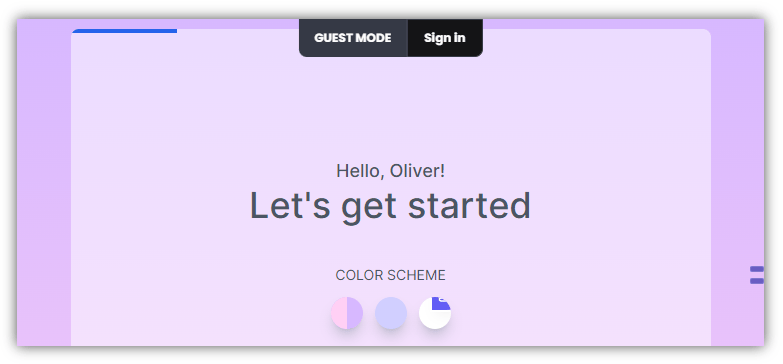
<Steps>
  <Step title="Find the Superflow Toolbar and click the More Options icon">
    <Frame>
      <img src="https://mintcdn.com/superflow-claude-superflow-portal-docs-78gpp8/RIqHueQcev0iKYC7/images/how-to-guides/how-to-use-guest-mode/VPD1FINAL.png?fit=max&auto=format&n=RIqHueQcev0iKYC7&q=85&s=ee6a95d16239906bd1ac5b0513e7019c" alt="Find the Superflow Toolbar and click the More Options icon" width="779" height="693" data-path="images/how-to-guides/how-to-use-guest-mode/VPD1FINAL.png" />
    </Frame>
  </Step>

  <Step title="A sub-menu will expand, click the View Project option to select" />

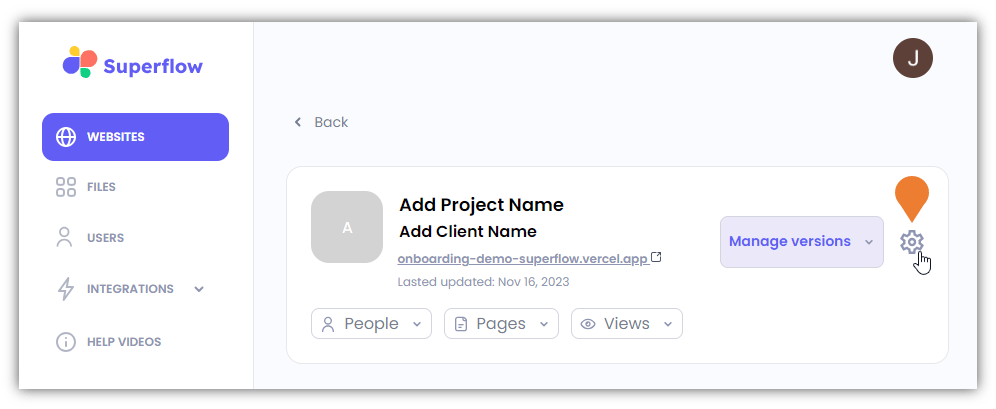
  <Step title="You will be directed to the Project Dashboard page, find and click the Settings icon">
    <Frame>
      <img src="https://mintcdn.com/superflow-claude-superflow-portal-docs-78gpp8/RIqHueQcev0iKYC7/images/how-to-guides/how-to-use-guest-mode/EGM1FINAL.png?fit=max&auto=format&n=RIqHueQcev0iKYC7&q=85&s=5fa39e61ab1c4ee24f41b48d960dc5af" alt="You will be directed to the Project Dashboard page, find and click the Settings icon" width="996" height="409" data-path="images/how-to-guides/how-to-use-guest-mode/EGM1FINAL.png" />
    </Frame>
  </Step>

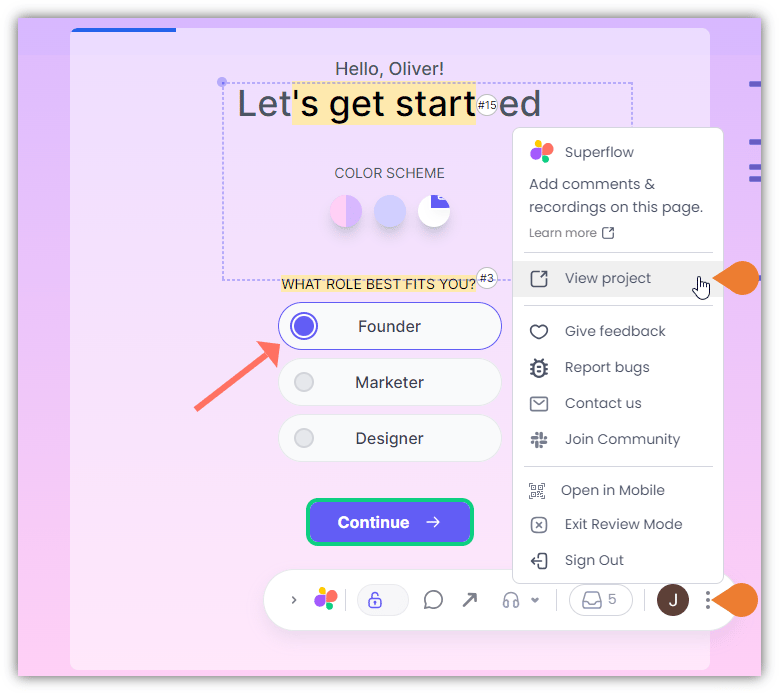
  <Step title="Find the Manage Access & Permissions section and click the See More drop-down arrow">
    <Frame>
      <img src="https://mintcdn.com/superflow-claude-superflow-portal-docs-78gpp8/RIqHueQcev0iKYC7/images/how-to-guides/how-to-use-guest-mode/EGM2FINAL.png?fit=max&auto=format&n=RIqHueQcev0iKYC7&q=85&s=e15d9ebd8e18d298e3b1707e36714190" alt="Find the Manage Access & Permissions section and click the See More drop-down arrow" width="1000" height="421" data-path="images/how-to-guides/how-to-use-guest-mode/EGM2FINAL.png" />
    </Frame>
  </Step>

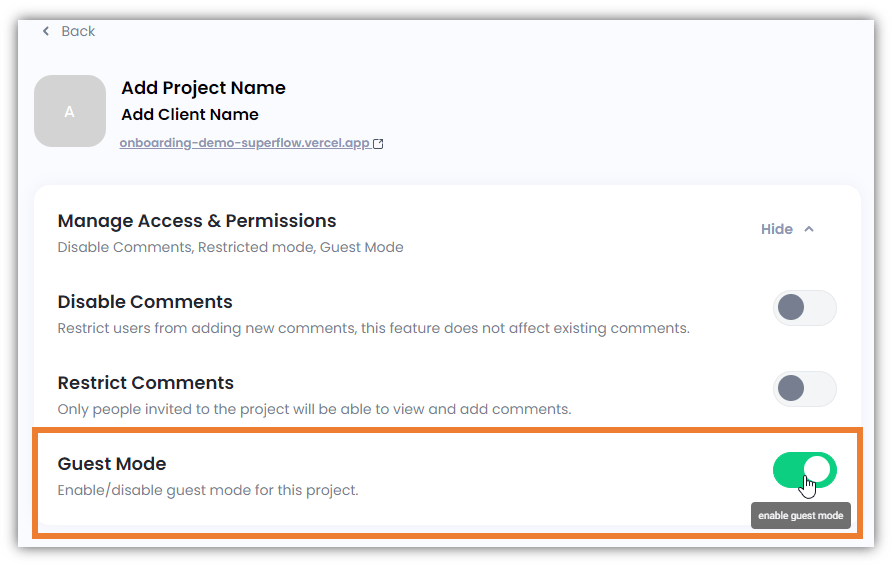
  <Step title="The Manage Access & Permissions section will expand…">
    The **Manage Access & Permissions** section will expand, go to the **Guest Mode** option and ensure that it is turned on by toggling it to **Enable Guest Mode**.
    <Frame>
      <img src="https://mintcdn.com/superflow-claude-superflow-portal-docs-78gpp8/RIqHueQcev0iKYC7/images/how-to-guides/how-to-use-guest-mode/EGM3FINAL.png?fit=max&auto=format&n=RIqHueQcev0iKYC7&q=85&s=b1e4057fb59d8e72b1352448809cdfc5" alt="The Manage Access & Permissions section will expand…" width="893" height="567" data-path="images/how-to-guides/how-to-use-guest-mode/EGM3FINAL.png" />
    </Frame>
  </Step>
</Steps>