> ## Documentation Index
> Fetch the complete documentation index at: https://superflow-claude-superflow-portal-docs-78gpp8.mintlify.site/llms.txt
> Use this file to discover all available pages before exploring further.
# How to Sign In to the Superflow Toolbar
> Sign in from the toolbar to comment under your own name and see your team's threads.
Signing in to the Superflow Toolbar lets you comment under your own identity, see and reply to your team's comment threads, and get notified about replies.
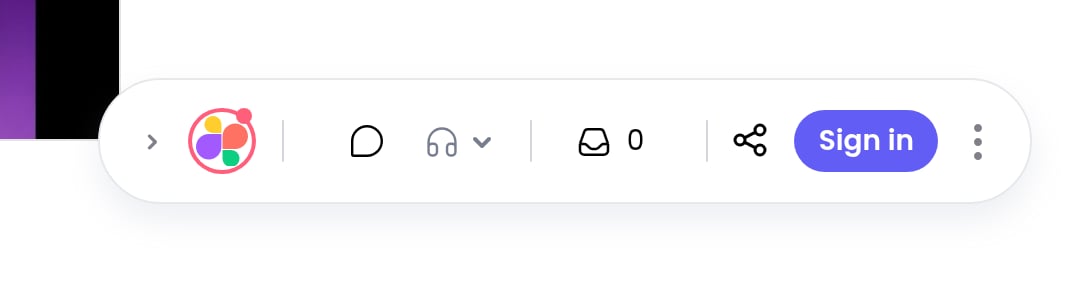
The toolbar sits in the bottom corner of the page. The **Sign in** button is on its right side.
 You can continue with **Google**, **Microsoft**, or your **work email**. Email sign-in sends you a 6-digit verification code.
Your avatar appears in the toolbar, and your comments are now attributed to you.
If the project has [guest mode](/how-to-guides/how-to-use-guest-mode) enabled, you can also comment without an account: just add your name when prompted, or stay anonymous.
You can continue with **Google**, **Microsoft**, or your **work email**. Email sign-in sends you a 6-digit verification code.
Your avatar appears in the toolbar, and your comments are now attributed to you.
If the project has [guest mode](/how-to-guides/how-to-use-guest-mode) enabled, you can also comment without an account: just add your name when prompted, or stay anonymous.