> ## Documentation Index
> Fetch the complete documentation index at: https://superflow-claude-superflow-portal-docs-78gpp8.mintlify.site/llms.txt
> Use this file to discover all available pages before exploring further.
# How to Use the Kanban Board
> Every comment is a card. Track feedback through statuses on the project board.
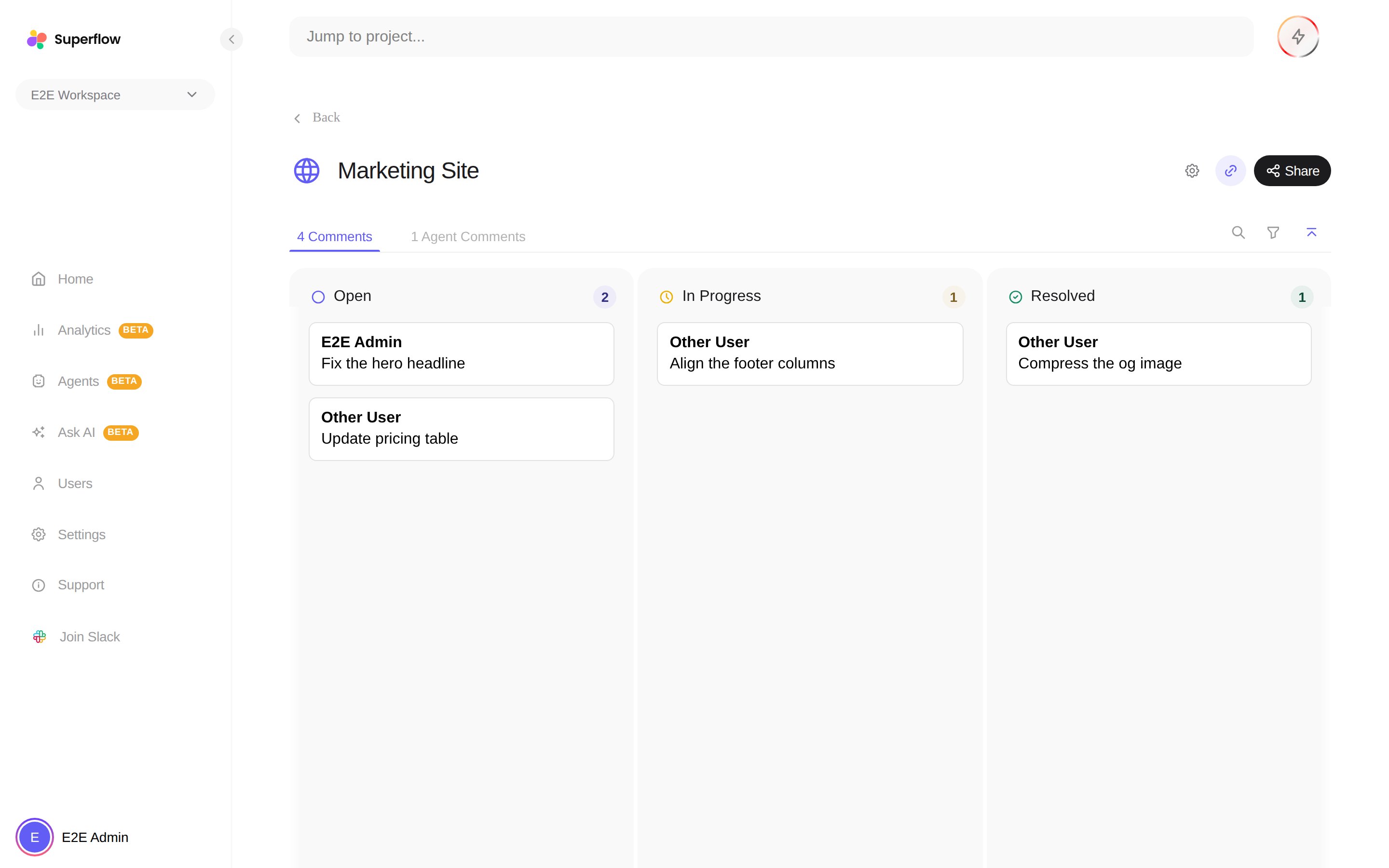
Every project has a Kanban board where each comment is a card, organized into columns by status. Open any project from the Home page to see it.
 ## Working the board
* **Drag a card** to another column to change the comment's status. The change syncs everywhere, including on the live site.
* **Click a card** to read the thread and reply without leaving the board.
* Use the **external link** on a card to open the live page where the comment was left.
* **Search** finds cards by text, and the **filter** narrows the board by person (**All**, **For Me**, **Added By Me**, **QA Agent**) or by page.
* Press **F** or click the **Focus** button to expand the board to the full window.
* Columns can be **dragged to reorder**, and the **+** zones between columns create new statuses.
The default columns are your workspace's statuses. You can add your own workflow stages, like Design Review or Awaiting Client. See [How to Use Custom Comment Statuses](/dashboard/how-to-manage-custom-statuses).
Agent findings live on their own **Agent Comments** tab next to the board, so automated findings never clutter your team's feedback. See [How to Review Agent Findings](/agents/how-to-review-agent-findings).
## Working the board
* **Drag a card** to another column to change the comment's status. The change syncs everywhere, including on the live site.
* **Click a card** to read the thread and reply without leaving the board.
* Use the **external link** on a card to open the live page where the comment was left.
* **Search** finds cards by text, and the **filter** narrows the board by person (**All**, **For Me**, **Added By Me**, **QA Agent**) or by page.
* Press **F** or click the **Focus** button to expand the board to the full window.
* Columns can be **dragged to reorder**, and the **+** zones between columns create new statuses.
The default columns are your workspace's statuses. You can add your own workflow stages, like Design Review or Awaiting Client. See [How to Use Custom Comment Statuses](/dashboard/how-to-manage-custom-statuses).
Agent findings live on their own **Agent Comments** tab next to the board, so automated findings never clutter your team's feedback. See [How to Review Agent Findings](/agents/how-to-review-agent-findings).