> ## Documentation Index
> Fetch the complete documentation index at: https://superflow-claude-superflow-portal-docs-78gpp8.mintlify.site/llms.txt
> Use this file to discover all available pages before exploring further.
# How to Upload Custom Branding
> Put your agency's logo on the toolbar and the dashboard, so clients see your brand.
With custom branding, the review toolbar your clients see and the dashboard your team uses both carry your logo instead of Superflow's.
On the Superflow Dashboard, click **Settings** in the left sidebar and open the **Custom Branding** tab.
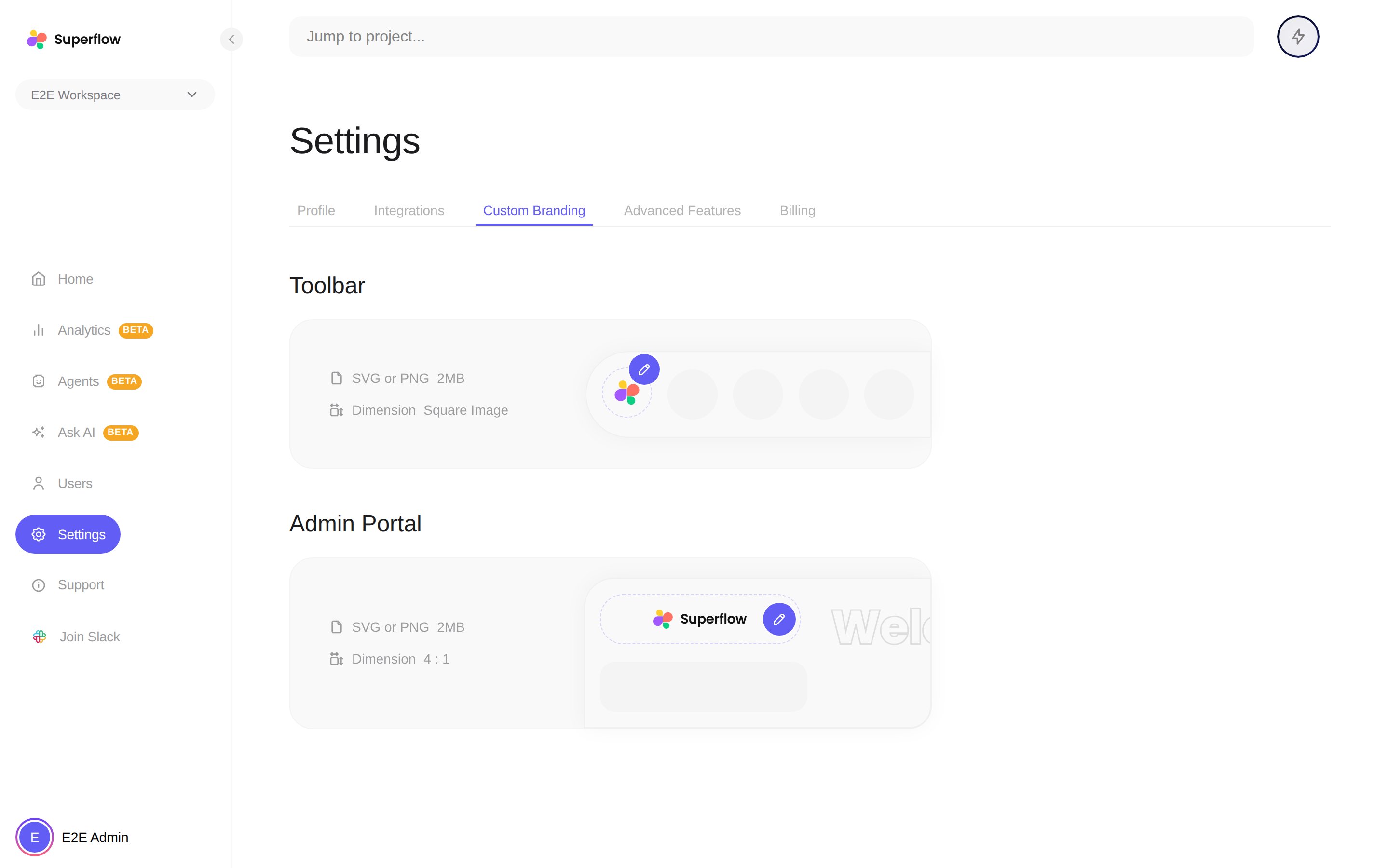 Click the edit button on the **Toolbar** preview and pick a **square** logomark, SVG or PNG, up to 2MB. It replaces the Superflow mark on the toolbar your reviewers see.
Click the edit button on the **Admin Portal** preview and pick a wide **4:1** wordmark, SVG or PNG, up to 2MB. It replaces the Superflow logo in the dashboard sidebar.
Both previews update live, and each logo can be removed to go back to the default.
Custom branding is available on paid plans. If the tab shows an upgrade prompt, your current plan does not include it. See [which parts of the site can be custom branded](/product-features/which-parts-of-the-site-would-I-be-able-to-custom-brand).
Click the edit button on the **Toolbar** preview and pick a **square** logomark, SVG or PNG, up to 2MB. It replaces the Superflow mark on the toolbar your reviewers see.
Click the edit button on the **Admin Portal** preview and pick a wide **4:1** wordmark, SVG or PNG, up to 2MB. It replaces the Superflow logo in the dashboard sidebar.
Both previews update live, and each logo can be removed to go back to the default.
Custom branding is available on paid plans. If the tab shows an upgrade prompt, your current plan does not include it. See [which parts of the site can be custom branded](/product-features/which-parts-of-the-site-would-I-be-able-to-custom-brand).