> ## Documentation Index
> Fetch the complete documentation index at: https://superflow-claude-superflow-portal-docs-78gpp8.mintlify.site/llms.txt
> Use this file to discover all available pages before exploring further.
# How to Set Up Email Summaries
> Get a digest of comment activity across your projects, on the schedule you choose.
Email summaries send you a digest of what happened across your projects, so you can stay on top of feedback without living in the dashboard.
Scroll to the **Email Notifications** section.
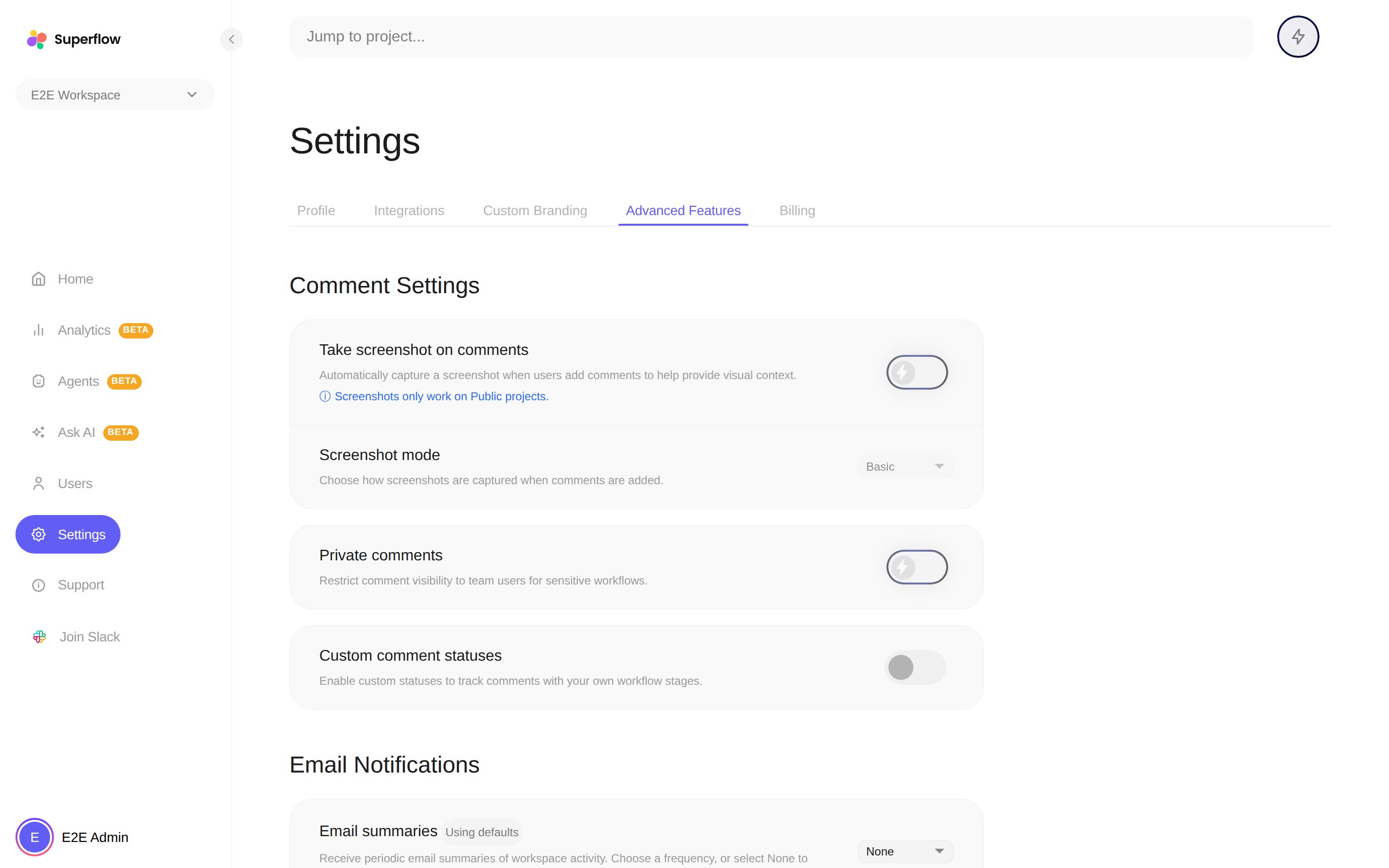 Choose how often the digest arrives from the frequency dropdown, or pick **None** to turn summaries off. Until you change it, Superflow uses the default schedule.
Use **Send test email** to check what the digest looks like and confirm it lands in your inbox rather than a spam folder.
Superflow also sends real-time notifications through the [Slack integration](/Integrations/how-to-integrate-with-slack) and [webhooks](/Integrations/how-to-use-webhooks). Email summaries are the low-noise option: one digest, on your schedule.
Choose how often the digest arrives from the frequency dropdown, or pick **None** to turn summaries off. Until you change it, Superflow uses the default schedule.
Use **Send test email** to check what the digest looks like and confirm it lands in your inbox rather than a spam folder.
Superflow also sends real-time notifications through the [Slack integration](/Integrations/how-to-integrate-with-slack) and [webhooks](/Integrations/how-to-use-webhooks). Email summaries are the low-noise option: one digest, on your schedule.