> ## Documentation Index
> Fetch the complete documentation index at: https://superflow-claude-superflow-portal-docs-78gpp8.mintlify.site/llms.txt
> Use this file to discover all available pages before exploring further.
# How to Invite Commenters
> Invite a Guest, who can comment on a single project without seeing the rest of your workspace.
Commenters are called **Guests** in Superflow. They can leave and reply to comments on the projects they are invited to, and nothing else. This is the right role for clients and outside reviewers. See [Team Users and Guests](/product-features/user-roles-explained).
Then click **Invite Users** in the top right.
Pick which project they should have access to.
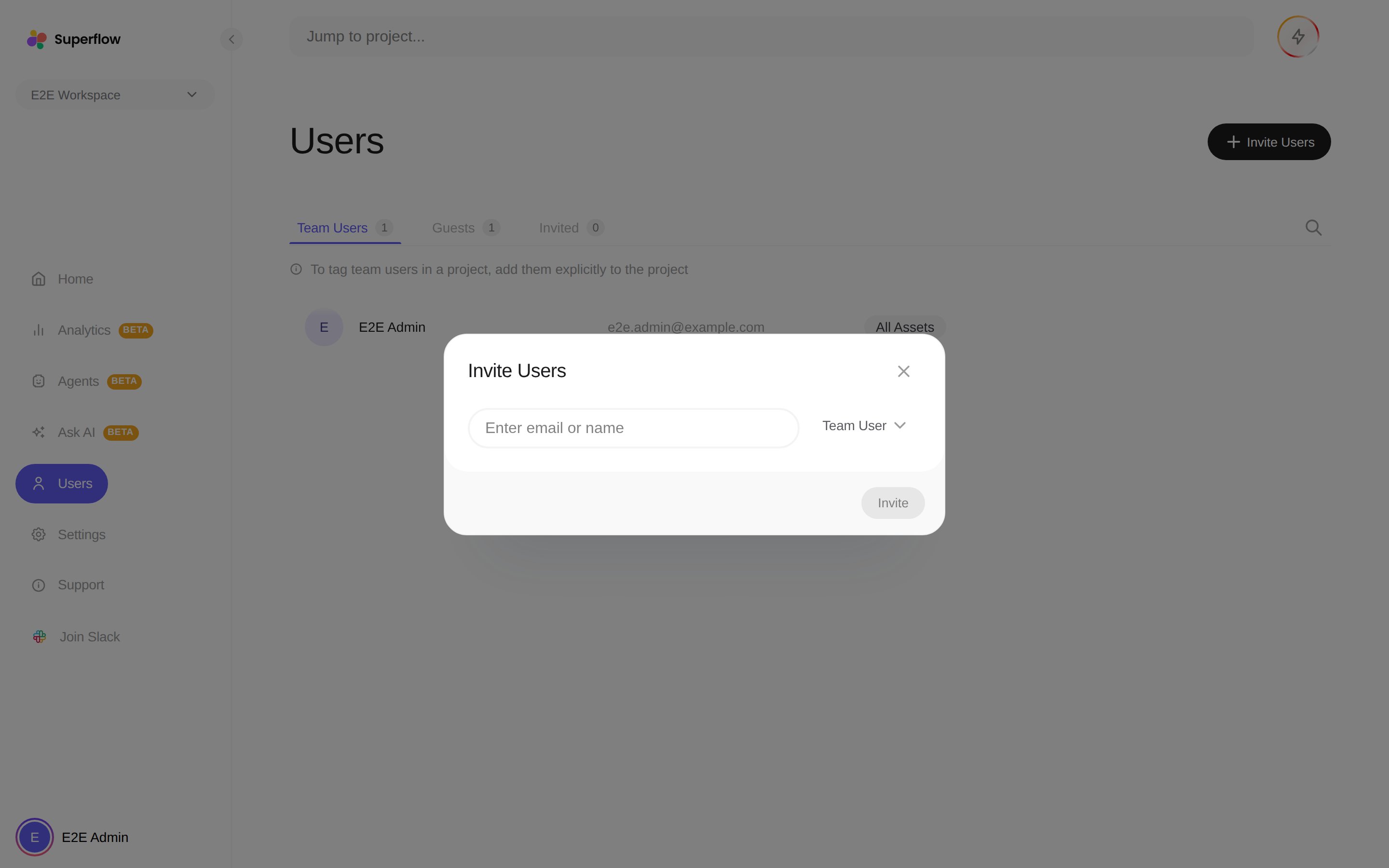 They receive an email that takes them straight to the project in review mode.
If the project has [guest mode](/how-to-guides/how-to-use-guest-mode) enabled, you can skip the invitation entirely: copy the review link and anyone who opens it can comment.
They receive an email that takes them straight to the project in review mode.
If the project has [guest mode](/how-to-guides/how-to-use-guest-mode) enabled, you can skip the invitation entirely: copy the review link and anyone who opens it can comment.