> ## Documentation Index
> Fetch the complete documentation index at: https://superflow-claude-superflow-portal-docs-78gpp8.mintlify.site/llms.txt
> Use this file to discover all available pages before exploring further.
# How to Access the Project Settings
> Open a project's settings to manage access, domains, comment exports, and more.
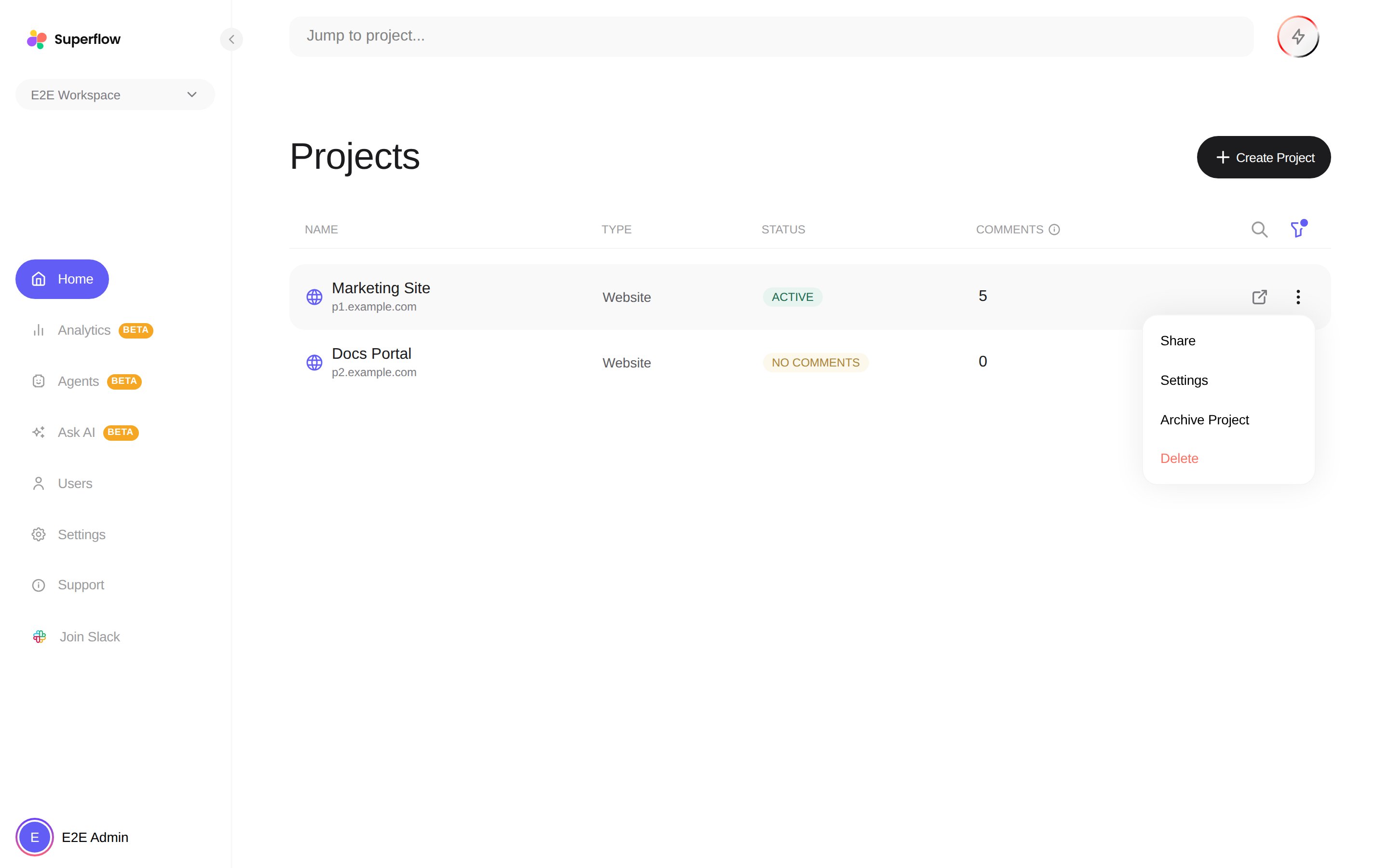
In this article, you will learn how to access a project's settings on the Superflow Dashboard at [app.usesuperflow.com](https://app.usesuperflow.com).
You can also open the project first and click the settings icon in its header.
 | Section | What you can do |
| ---------------------- | ------------------------------------------------------------------------------------------------------------------------------ |
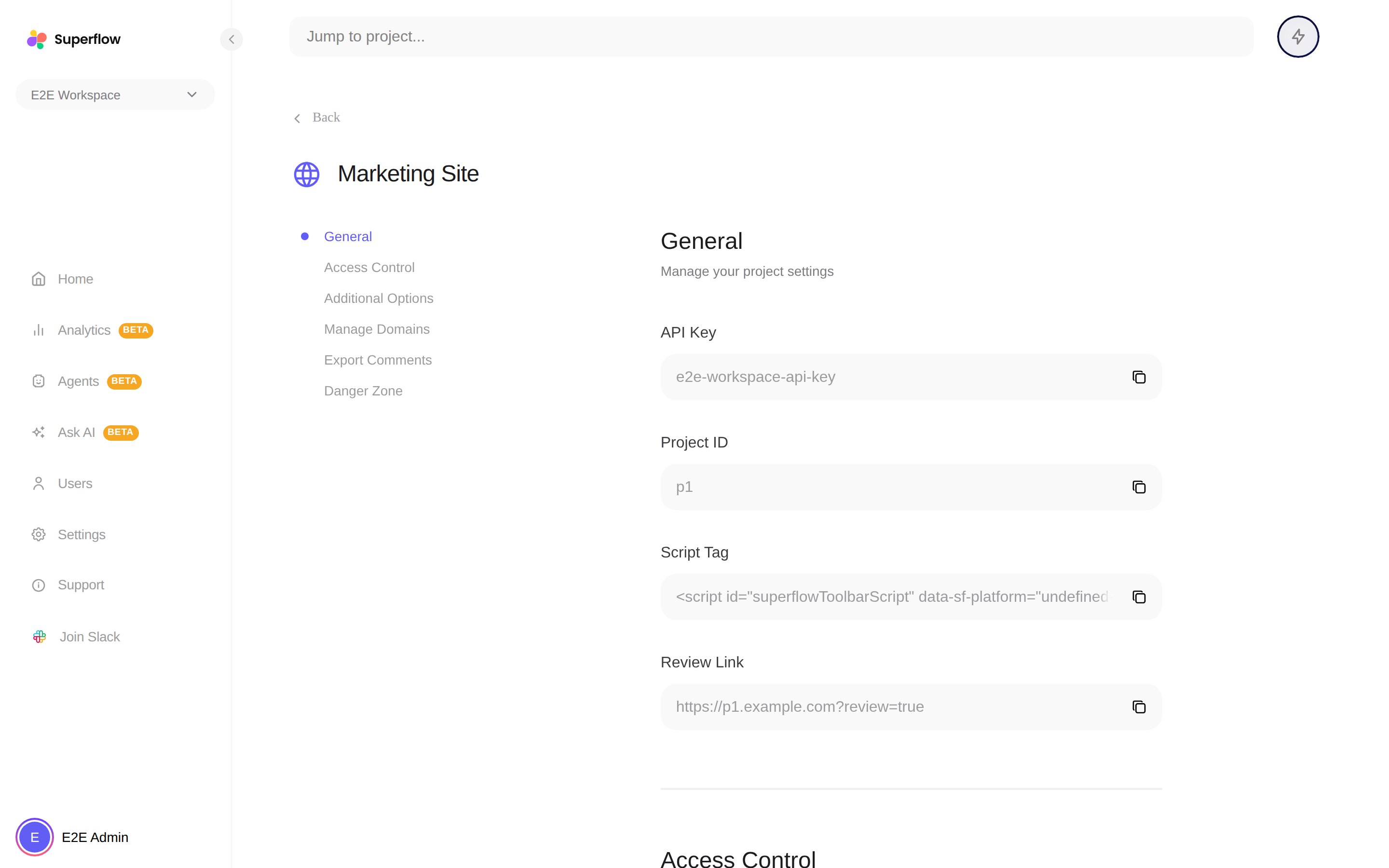
| **General** | Copy the project's API key, project ID, script tag, and review link. |
| **Access Control** | Set the project access level, disable commenting for everyone, and turn on [guest mode](/product-features/what-is-guest-mode). |
| **Additional Options** | Treat URL query parameters as separate pages. |
| **Manage Domains** | Add or remove the domains this project covers, such as staging and production. |
| **Export Comments** | Download every comment as [JSON or CSV](/how-to-guides/how-can-I-export-comments). |
| **Danger Zone** | Delete all comments, or delete the project entirely. |
File projects show a **Versions & Branches** section here instead of domain management. See [How to Use Versions and Approve a File](/files/how-to-approve-a-file-version).
| Section | What you can do |
| ---------------------- | ------------------------------------------------------------------------------------------------------------------------------ |
| **General** | Copy the project's API key, project ID, script tag, and review link. |
| **Access Control** | Set the project access level, disable commenting for everyone, and turn on [guest mode](/product-features/what-is-guest-mode). |
| **Additional Options** | Treat URL query parameters as separate pages. |
| **Manage Domains** | Add or remove the domains this project covers, such as staging and production. |
| **Export Comments** | Download every comment as [JSON or CSV](/how-to-guides/how-can-I-export-comments). |
| **Danger Zone** | Delete all comments, or delete the project entirely. |
File projects show a **Versions & Branches** section here instead of domain management. See [How to Use Versions and Approve a File](/files/how-to-approve-a-file-version).