> ## Documentation Index
> Fetch the complete documentation index at: https://superflow-claude-superflow-portal-docs-78gpp8.mintlify.site/llms.txt
> Use this file to discover all available pages before exploring further.
# How to Run an Agent from the Agents Tab
> Learn how to run an agent from the Agents tab against one of your projects, and review its findings.
In this article, you will learn how to run an agent from the **Agents** tab against one of your projects, and review its findings. If you have not built an agent yet, start with [How to Create a New Agent](/agents/how-to-create-a-new-agent).
Agents are currently in **Beta**. Each run consumes credits from your workspace balance, and the exact cost is shown before you confirm the run.
Find the agent you want to run and click the **Play** icon on the right side of its row.
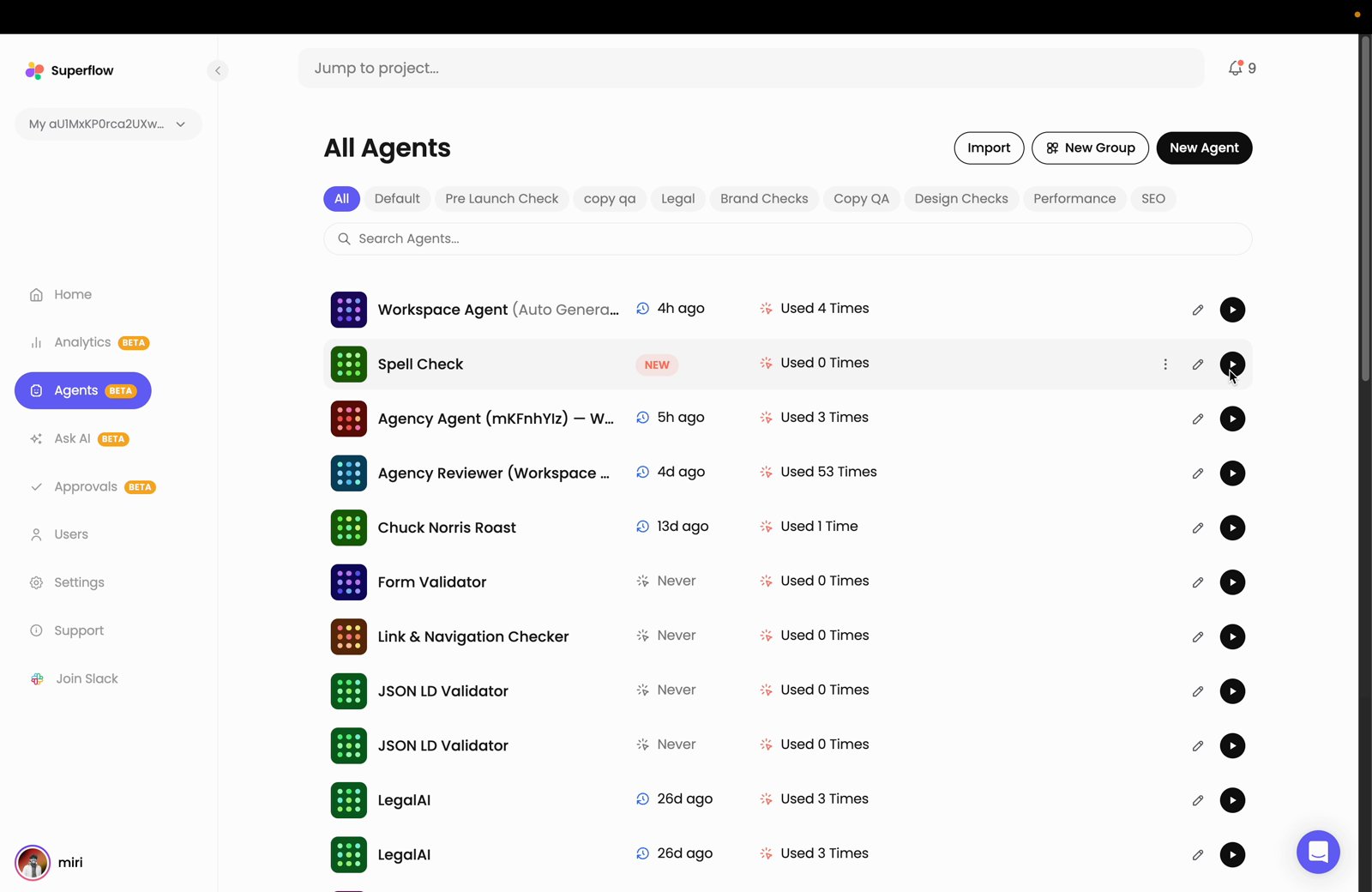 Use the **Search Agents** field to find an agent quickly, or the group filters above it (**All**, **Default**, **Pre Launch Check**, and so on).
Configure the run using the options below, then click **Run Agent**.
| Option | What it does |
| ------------------------- | ------------------------------------------------------------------------------------------------------------------------------------ |
| **Project** | The project to run the agent against. Use the **Website**, **PDF**, **Video**, **Image**, and **Lottie** filters to narrow the list. |
| **Path** | The path to check, for example `/`. |
| **Device** | Run the check as **Desktop** or **Mobile**. |
| **Run only for main URL** | Leave this checked to check only the main URL instead of crawling the whole project. |
Use the **Search Agents** field to find an agent quickly, or the group filters above it (**All**, **Default**, **Pre Launch Check**, and so on).
Configure the run using the options below, then click **Run Agent**.
| Option | What it does |
| ------------------------- | ------------------------------------------------------------------------------------------------------------------------------------ |
| **Project** | The project to run the agent against. Use the **Website**, **PDF**, **Video**, **Image**, and **Lottie** filters to narrow the list. |
| **Path** | The path to check, for example `/`. |
| **Device** | Run the check as **Desktop** or **Mobile**. |
| **Run only for main URL** | Leave this checked to check only the main URL instead of crawling the whole project. |
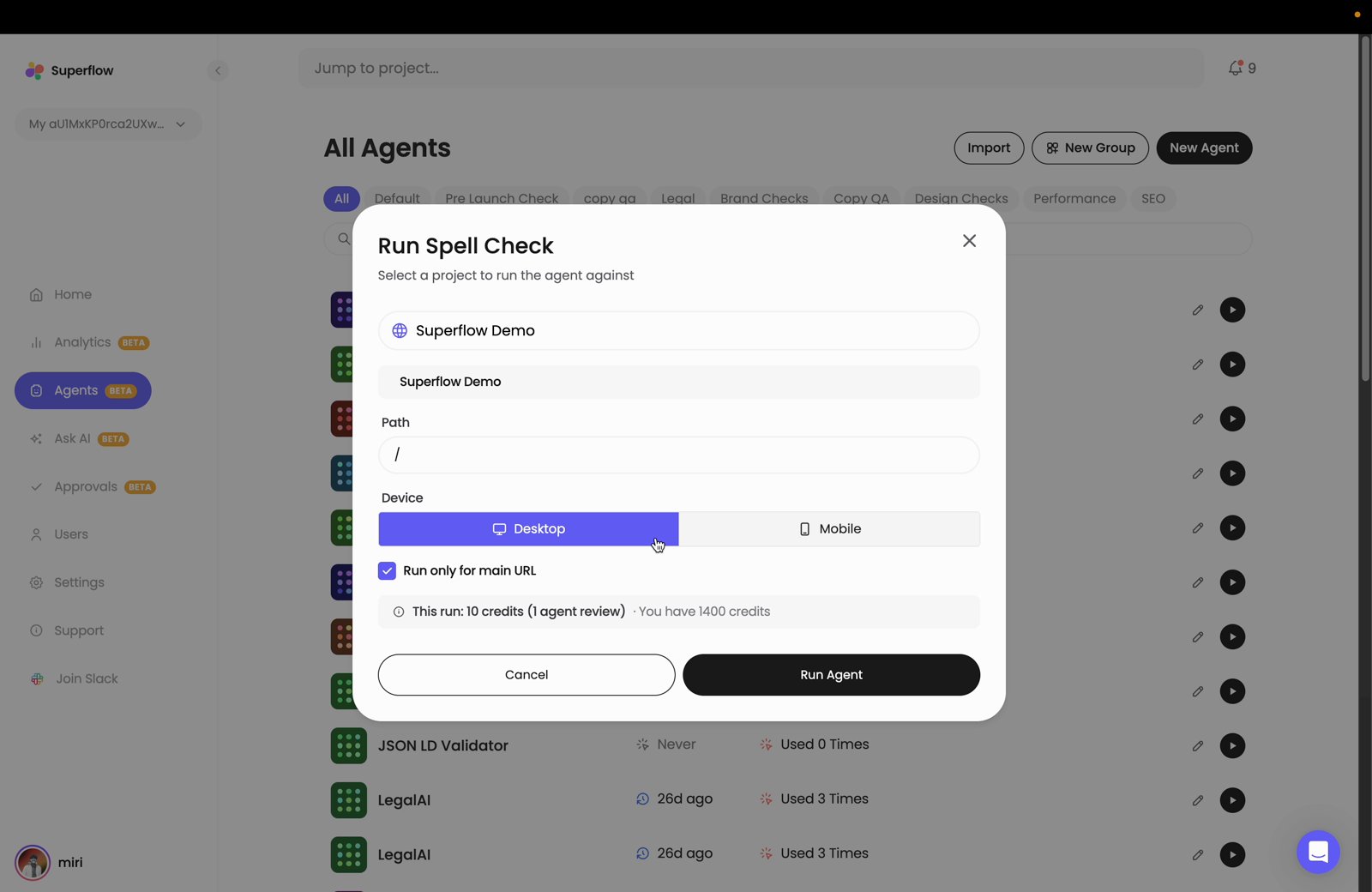 The cost of the run is shown just above the buttons, along with your remaining balance, so you can confirm it before spending credits.
When the run finishes, the results panel opens on the right side, named after your agent. In this example it is **Spell Check Results**. Each entry is a single run, showing the project it ran against, when it ran, the device used, who triggered it, and the number of findings. Click an entry to expand it and review the findings.
The cost of the run is shown just above the buttons, along with your remaining balance, so you can confirm it before spending credits.
When the run finishes, the results panel opens on the right side, named after your agent. In this example it is **Spell Check Results**. Each entry is a single run, showing the project it ran against, when it ran, the device used, who triggered it, and the number of findings. Click an entry to expand it and review the findings.
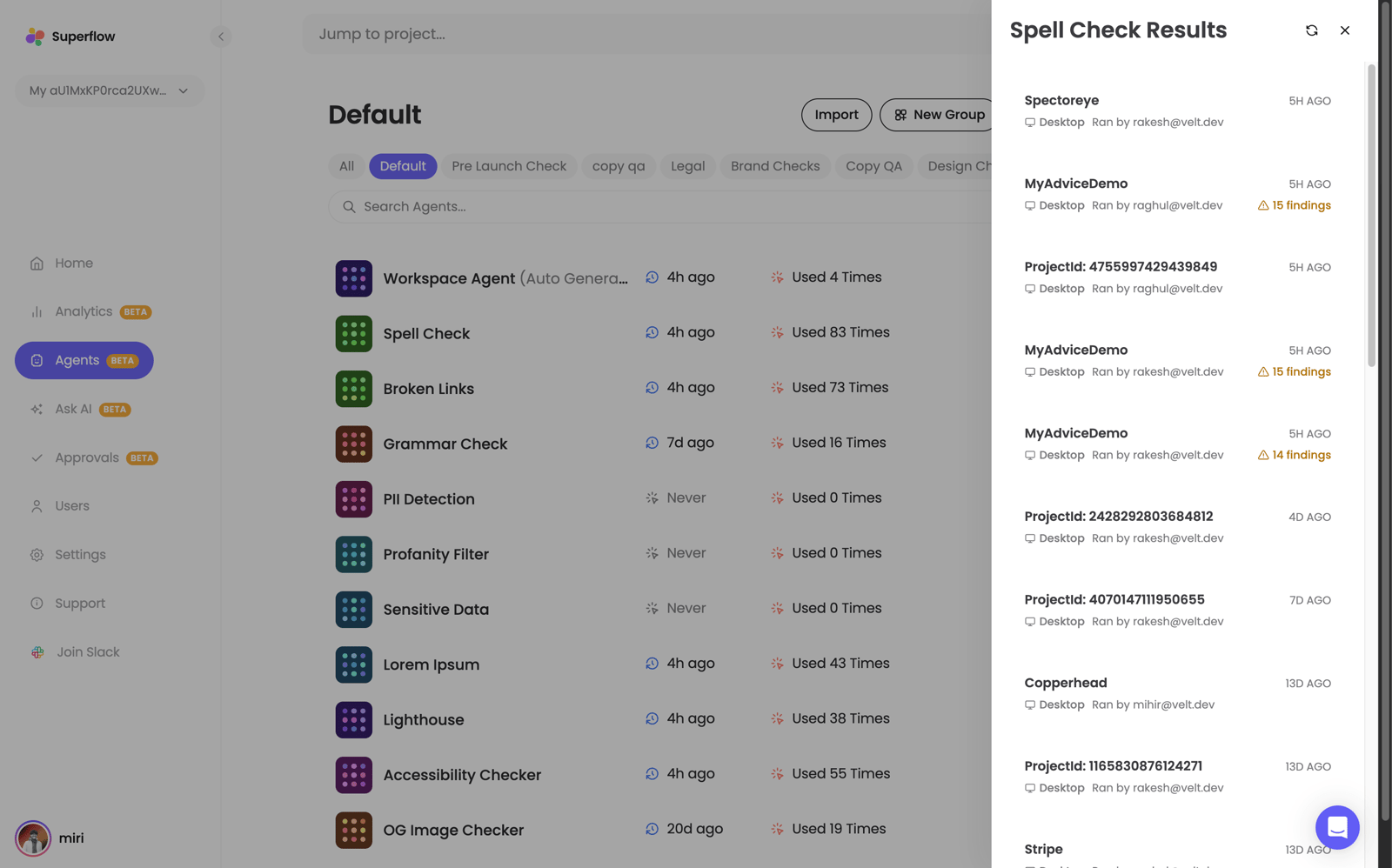 The panel keeps the history of every run for that agent, so you can compare a new run against earlier ones. If a run could not complete, it is listed with an error instead of a findings count.