> ## Documentation Index
> Fetch the complete documentation index at: https://superflow-claude-superflow-portal-docs-78gpp8.mintlify.site/llms.txt
> Use this file to discover all available pages before exploring further.
# How to Run Agent Pre-Checks on a New Project
> Learn how to have agents review a website while you are still setting it up as a project.
In this article, you will learn how to have agents review a website while you are still setting it up as a project. Superflow runs the agents you select against the URL as soon as you start, so by the time you finish installing the toolbar you already have an initial review of the site, without doing any manual QA yourself.
Agents are currently in **Beta**. Pre-checks run on the URL you enter, so the site needs to be reachable. The toolbar does not have to be installed yet.
## Choosing the Agents
On the Superflow Dashboard, click **Create Project** and paste your website URL into the **New Project** box. Below the URL field you will see the **Run Agents** option, already enabled with a few agents selected for you.
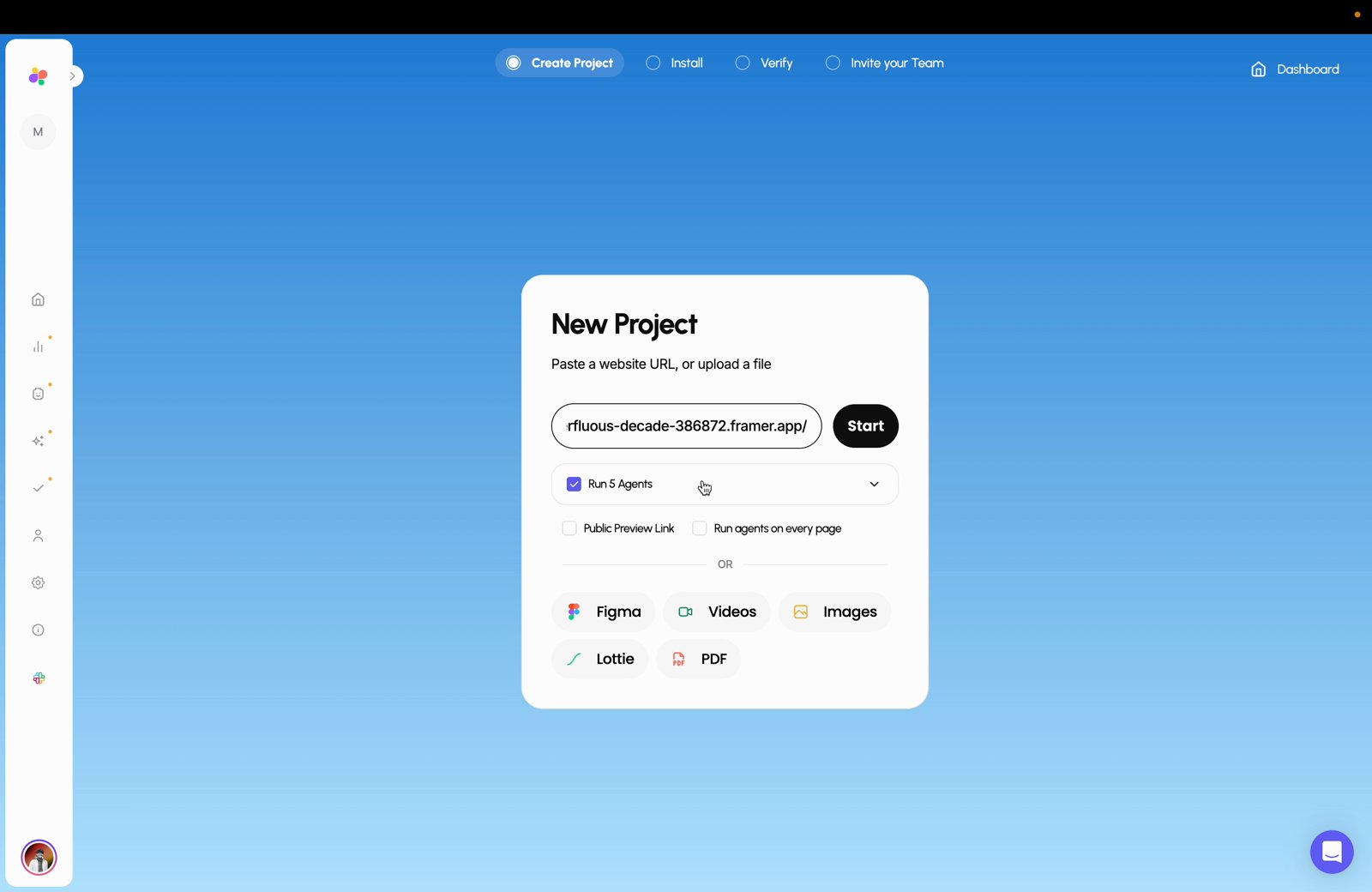 Two extra options sit underneath:
* **Public Preview Link** creates a link you can share with people outside your workspace.
* **Run agents on every page** checks every page it can reach instead of only the URL you entered.
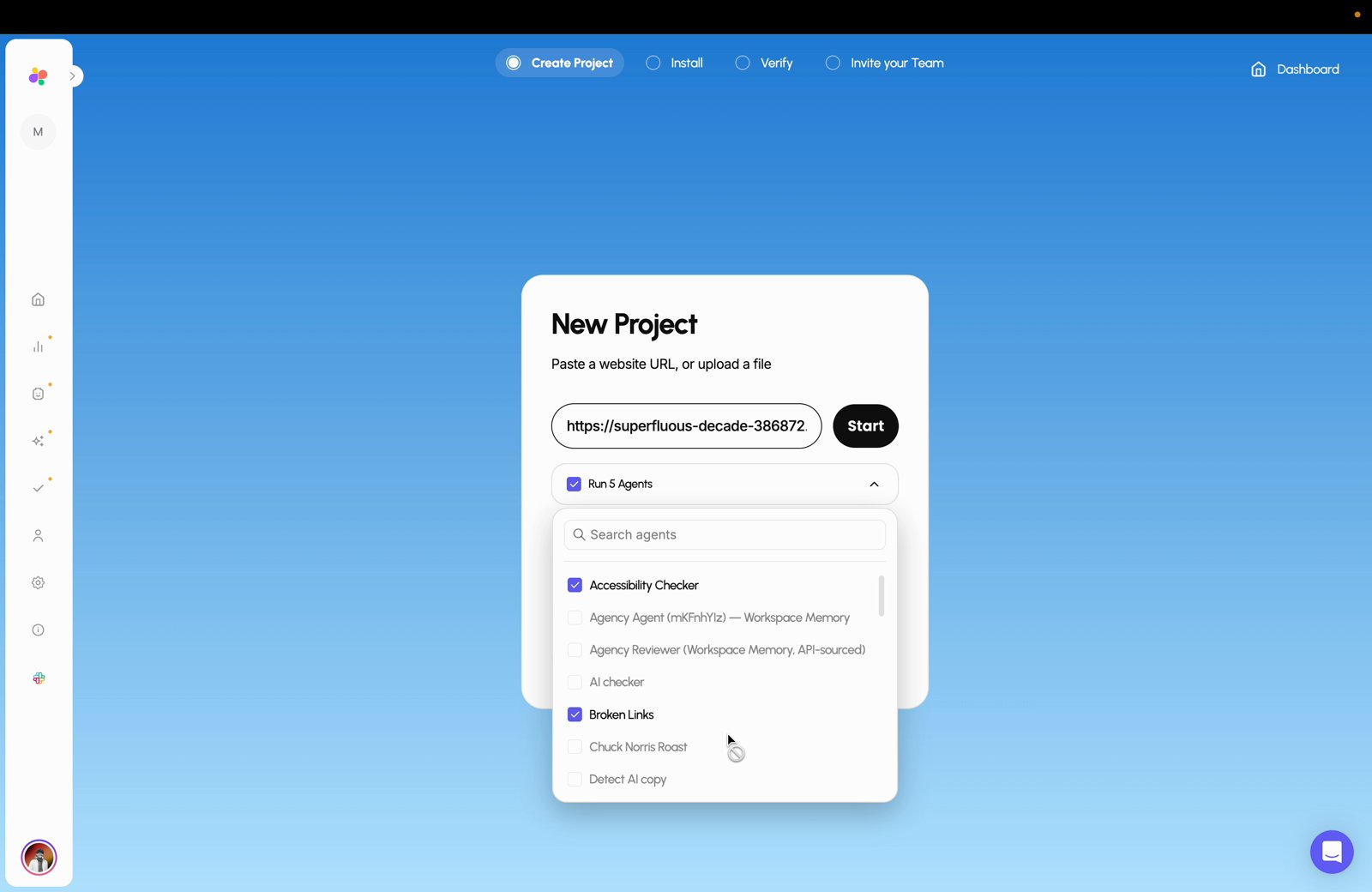
Search by name, clear the ones you do not need, and add any custom agents you have built.
Two extra options sit underneath:
* **Public Preview Link** creates a link you can share with people outside your workspace.
* **Run agents on every page** checks every page it can reach instead of only the URL you entered.
Search by name, clear the ones you do not need, and add any custom agents you have built.
 ## Watching the Review Run
Superflow continues to the usual **Install** step, where you copy the script onto your site. The difference is that a live preview of your website now loads on the right, and the agents begin running against it at the same time. Expand **Reviewing your website** to watch their progress.
## Watching the Review Run
Superflow continues to the usual **Install** step, where you copy the script onto your site. The difference is that a live preview of your website now loads on the right, and the agents begin running against it at the same time. Expand **Reviewing your website** to watch their progress.
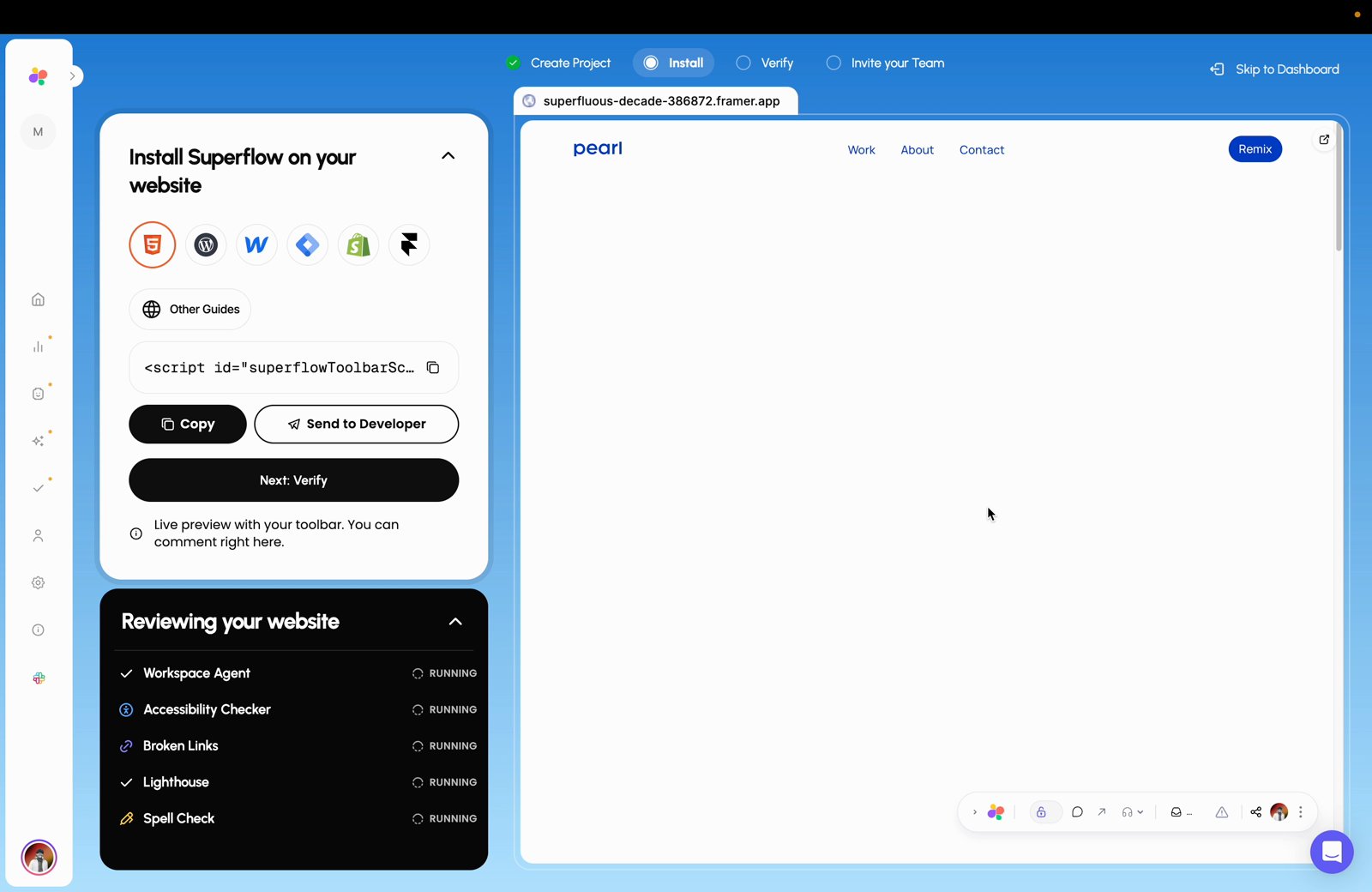 You do not have to wait on this screen. Copy the script, send it to a developer, or carry on to **Verify**. The agents keep running in the background.
Findings appear as each agent finishes rather than all at once, so the panel heading and the counts next to each agent keep climbing while the remaining agents are still marked **RUNNING**.
You do not have to wait on this screen. Copy the script, send it to a developer, or carry on to **Verify**. The agents keep running in the background.
Findings appear as each agent finishes rather than all at once, so the panel heading and the counts next to each agent keep climbing while the remaining agents are still marked **RUNNING**.
 ## Reviewing the Findings
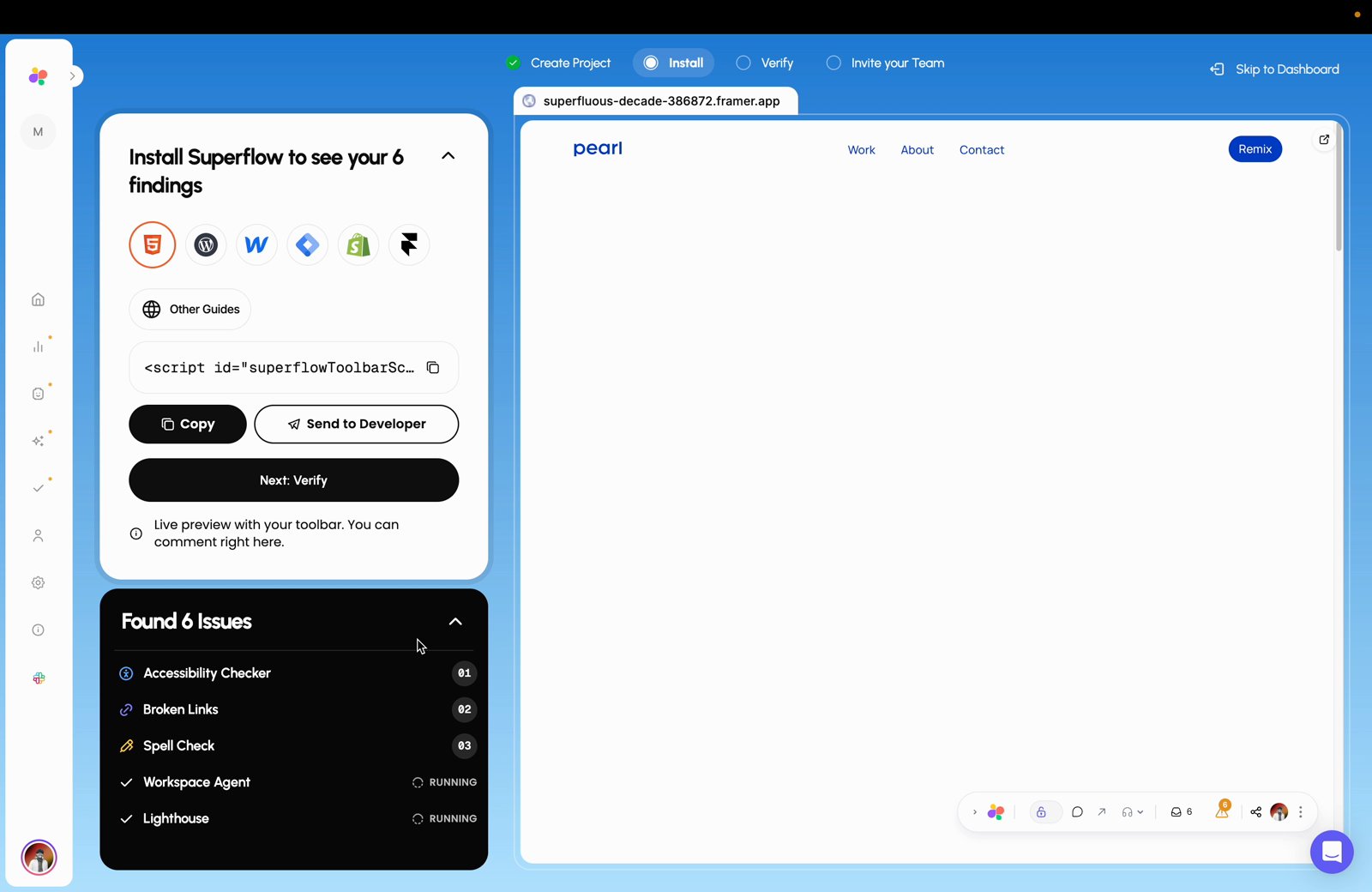
Click an agent to expand its findings. Each one explains the problem, and **Read More** opens the full detail.
## Reviewing the Findings
Click an agent to expand its findings. Each one explains the problem, and **Read More** opens the full detail.
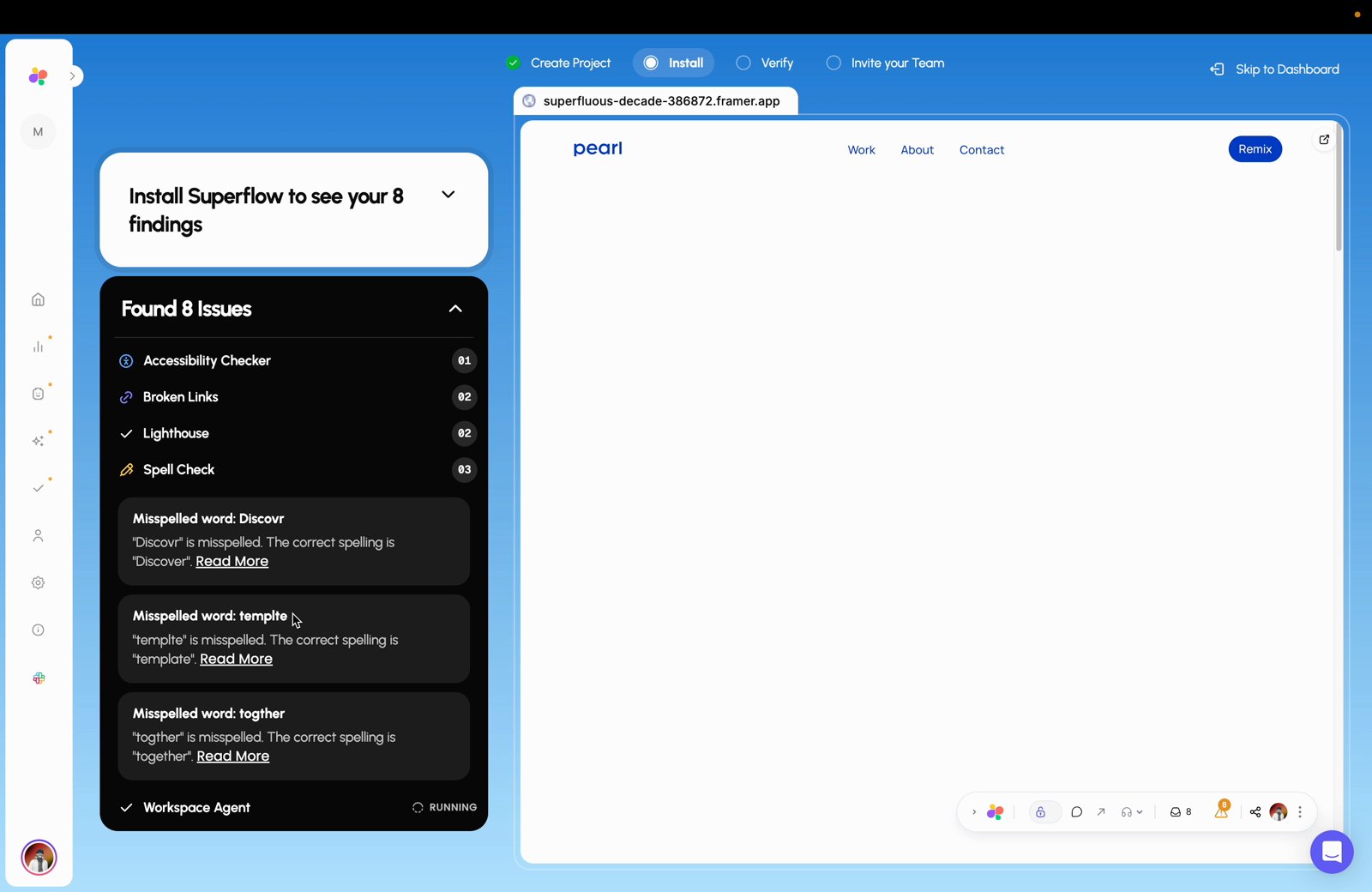 In this example the review found 8 issues before the site was even connected: one accessibility issue, two broken links, two Lighthouse issues, and three misspelled words: `Discovr`, `templte`, and `togther`.
Install the Superflow toolbar on your site to open these findings in context on the page itself. The count also appears on the toolbar in the live preview.
## Next Steps
Build your own agent so it is available to select on your next project.
Run an agent against a project you have already created.
In this example the review found 8 issues before the site was even connected: one accessibility issue, two broken links, two Lighthouse issues, and three misspelled words: `Discovr`, `templte`, and `togther`.
Install the Superflow toolbar on your site to open these findings in context on the page itself. The count also appears on the toolbar in the live preview.
## Next Steps
Build your own agent so it is available to select on your next project.
Run an agent against a project you have already created.